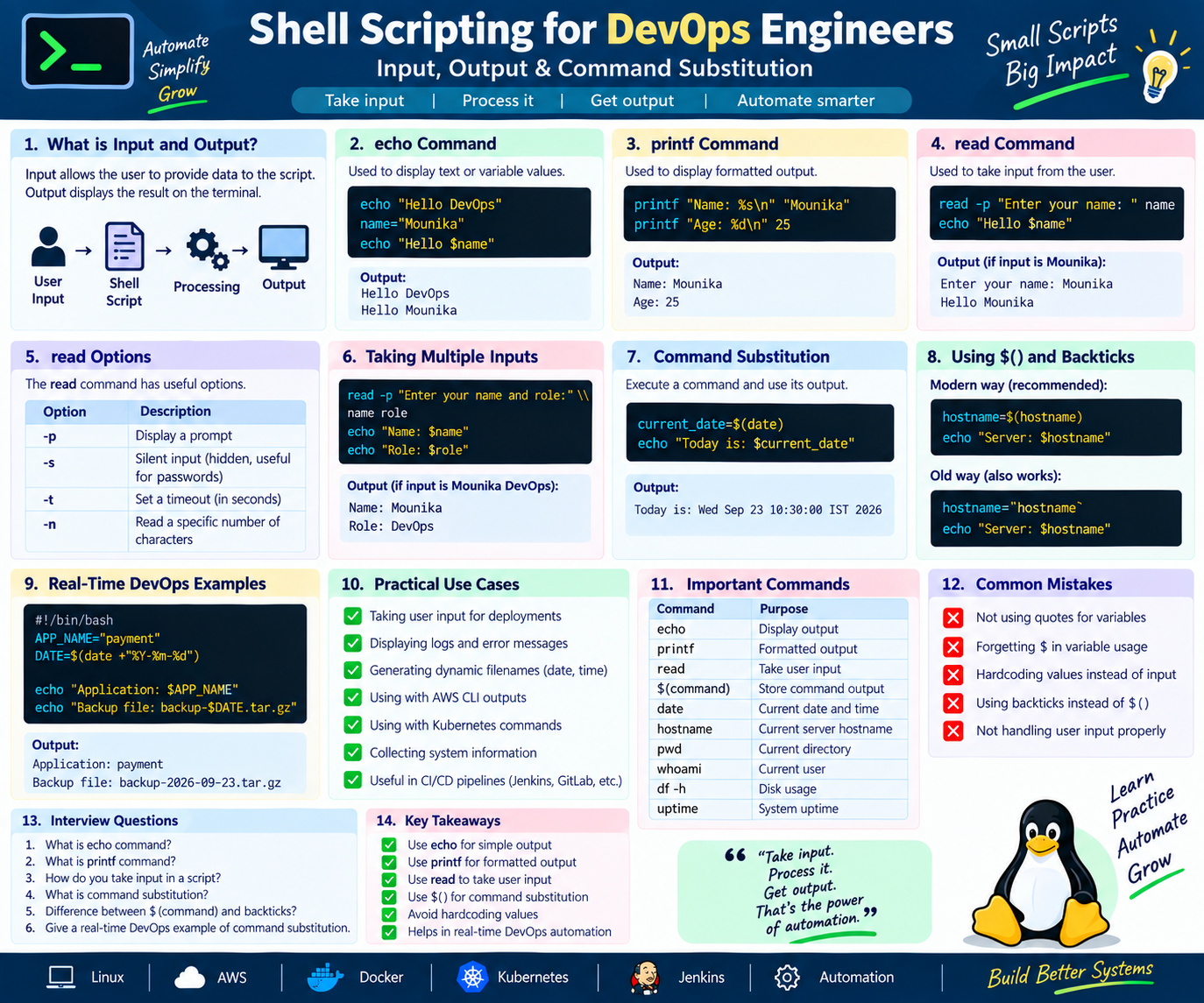
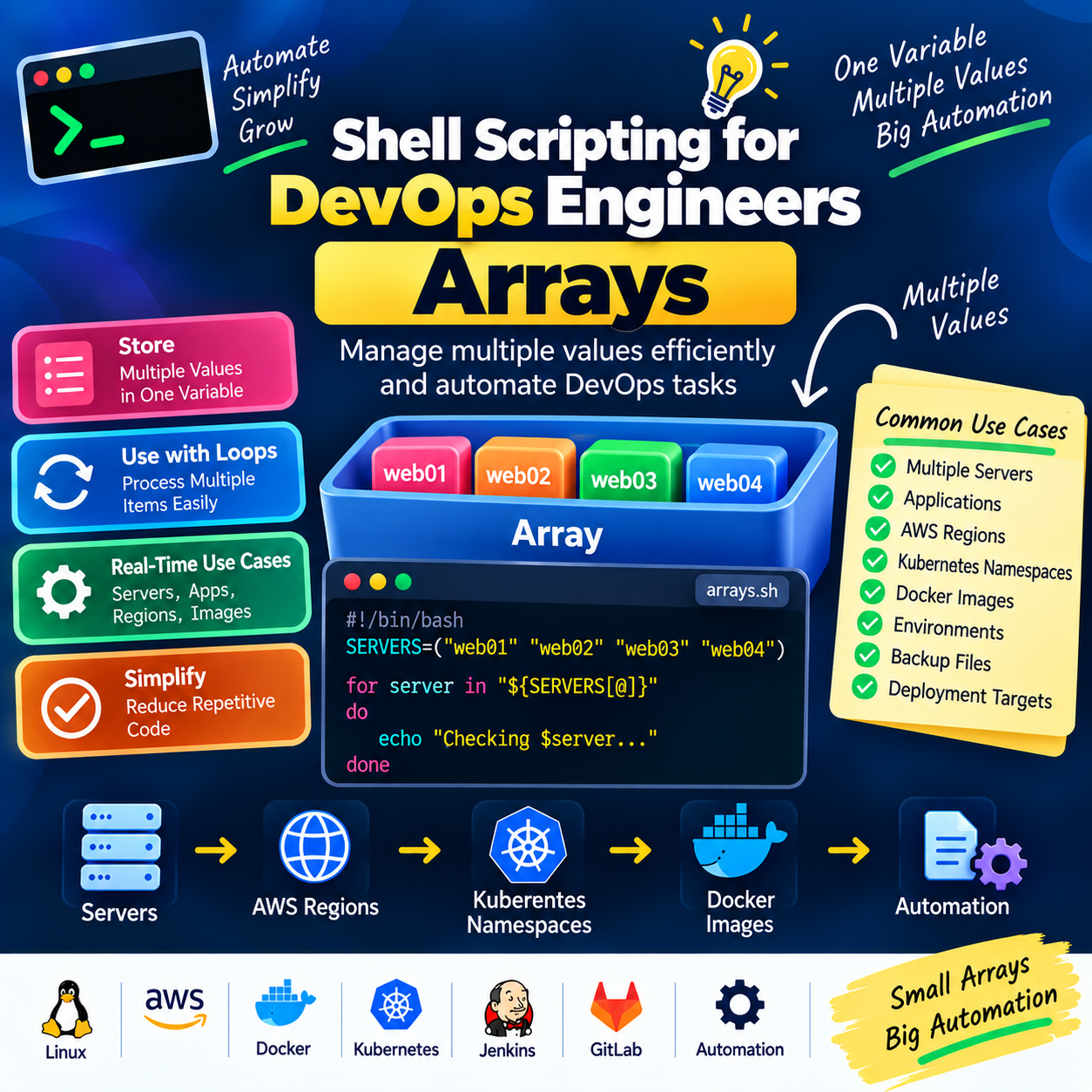
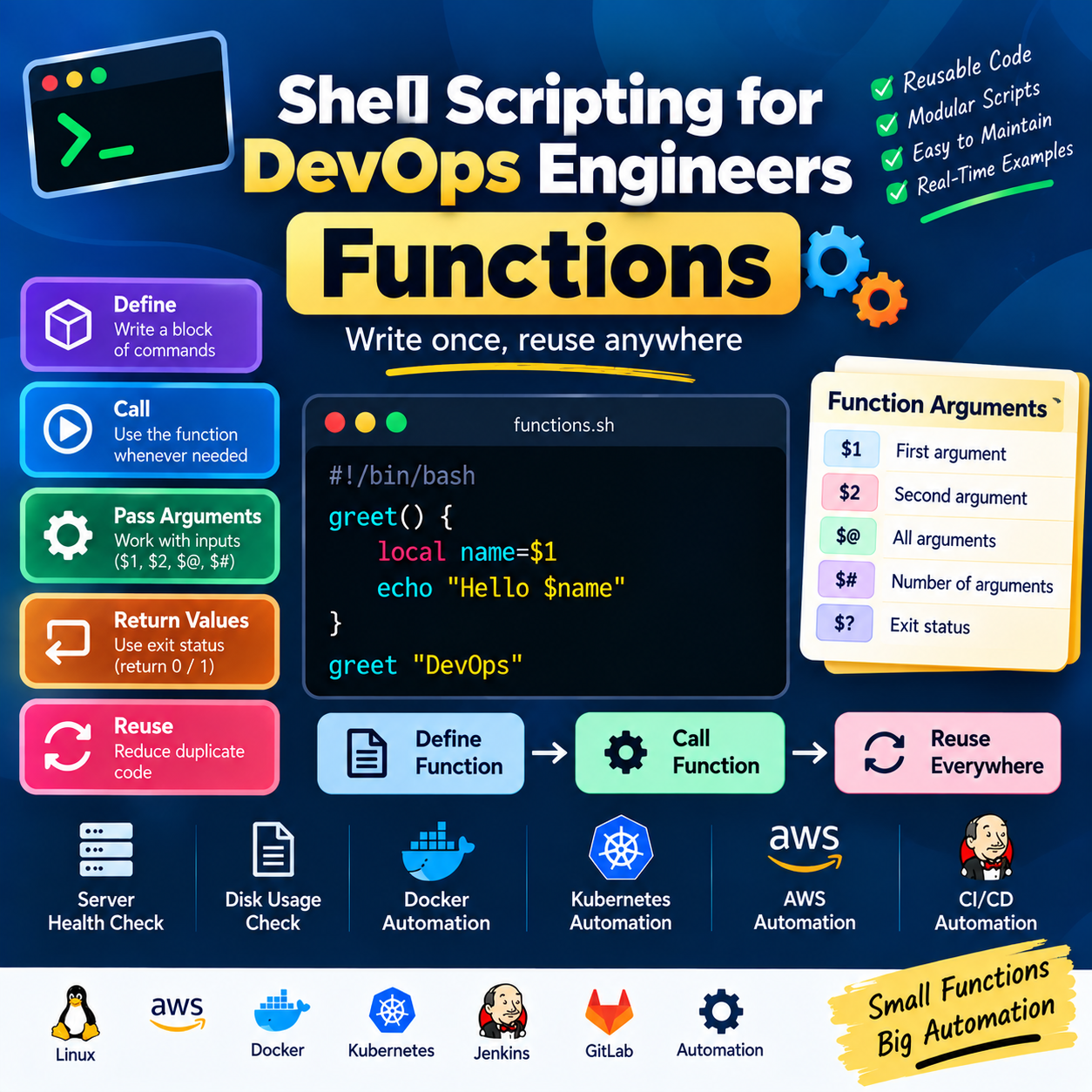
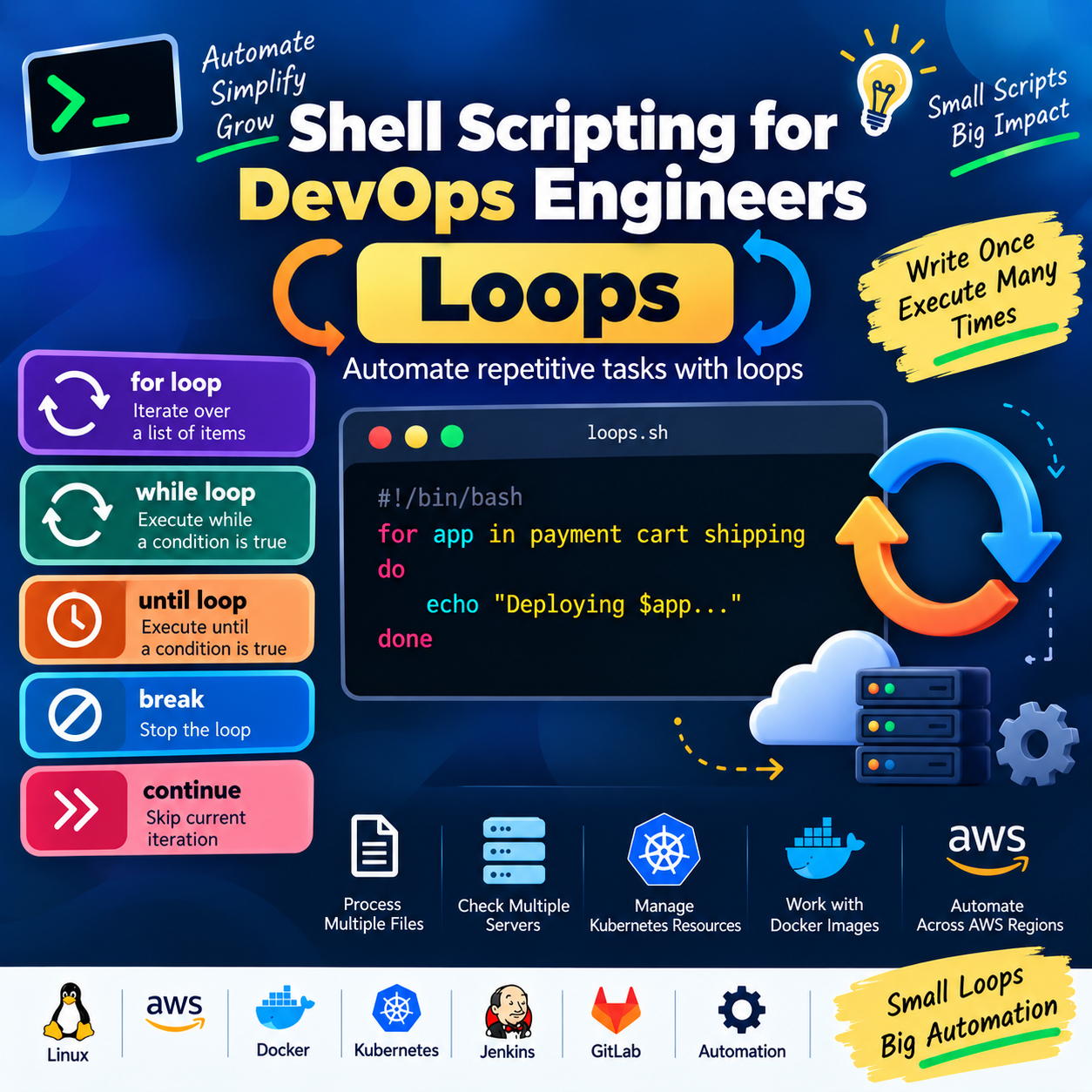
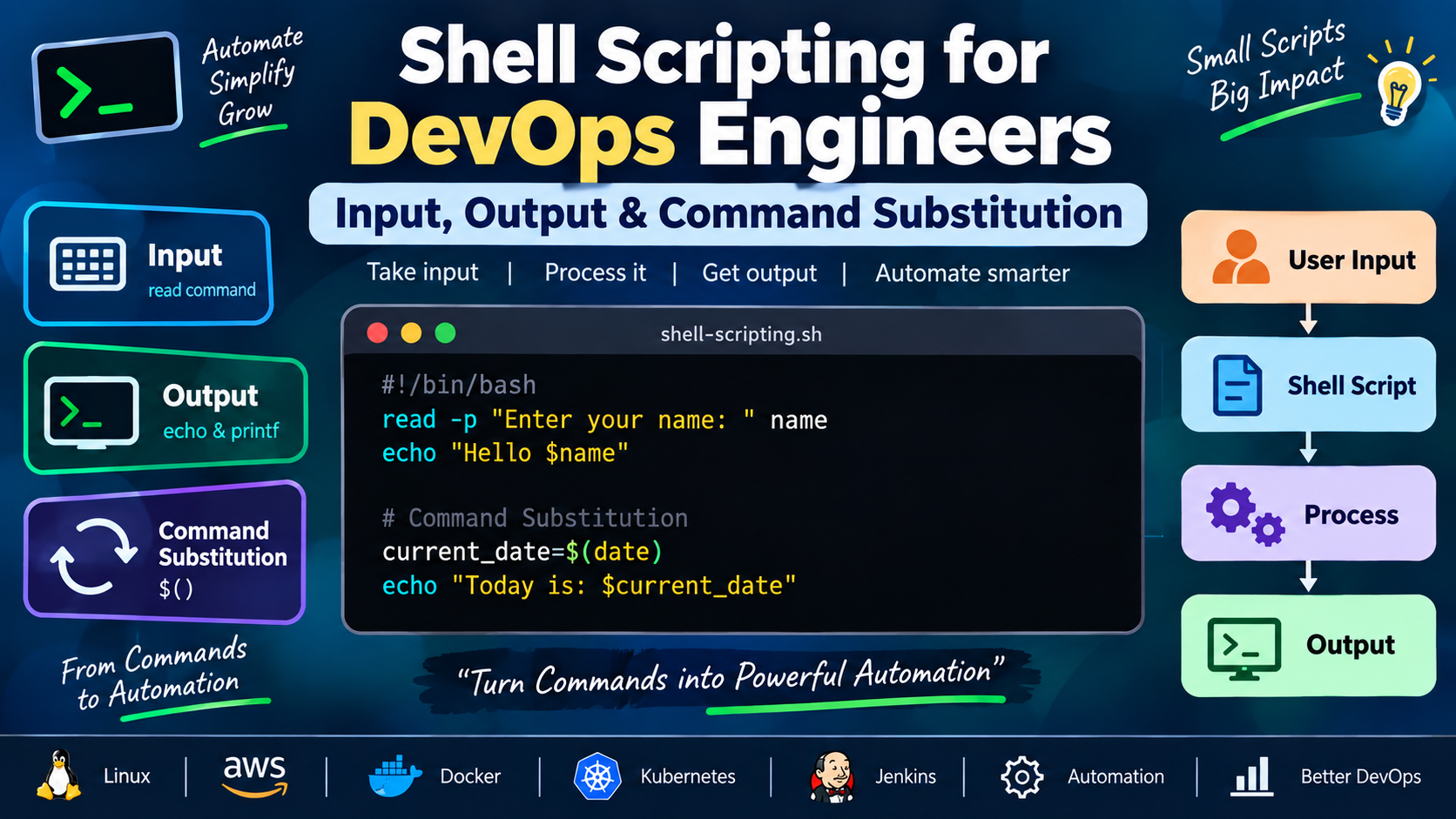
Shell Scripting for DevOps Engineers — Input, Output & Command Substitution
In the previous article, we learned about Variables and Environment Variables in Shell Scripting.
Variables allow us to store and reuse values in our scripts. In real-time DevOps automation, we also need to take input, display output, and capture the output of commands.
Take input, process it, and automate the output.
1. What is Input and Output?
Before understanding the commands, let's understand the basic concept.
A simple Shell script workflow looks like this:
User Input
    ↓
Shell Script
    ↓
Processing
    ↓
Command Execution
    ↓
Output
For example:
Enter Environment: dev
        ↓
Shell Script
        ↓
Processing
        ↓
Environment: dev
Shell provides different commands to handle input and output.
2. Using echo
The echo command is used to display text or variable values on the terminal.
Example:
echo "Hello DevOps"
Output:
Hello DevOps
We can also display variables:
name="Mounika"

echo "Hello $name"
Output:
Hello Mounika
3. Displaying Multiple Values
We can use echo to display multiple variables.
APP_NAME="payment"
ENVIRONMENT="dev"
VERSION="1.0.0"

echo "Application: $APP_NAME"
echo "Environment: $ENVIRONMENT"
echo "Version: $VERSION"
Output:
Application: payment
Environment: dev
Version: 1.0.0
This is useful for displaying deployment information in CI/CD pipelines.
4. Using printf
printf is another command used to display formatted output.
Example:
printf "Hello DevOps\n"
Output:
Hello DevOps
Here:
\n
represents a new line.
echo vs printf
Both commands can display output, but printf provides more control over formatting.
Example:
name="Mounika"
role="DevOps Engineer"

printf "Name: %s\n" "$name"
printf "Role: %s\n" "$role"
Output:
Name: Mounika
Role: DevOps Engineer
For scripts where consistent formatting matters, printf is often preferable.
5. Taking Input Using read
The read command is used to take input from the user.
Example:
#!/bin/bash

echo "Enter your name:"
read name

echo "Hello $name"
When we run the script:
Enter your name:
The user enters:
Mounika
Output:
Hello Mounika
6. Using read -p
Instead of using two separate commands:
echo "Enter your name:"
read name
we can use:
read -p "Enter your name: " name
Complete example:
#!/bin/bash

read -p "Enter your name: " name

echo "Hello $name"
Output:
Enter your name: Mounika
Hello Mounika
This is a cleaner approach.
7. Taking Multiple Inputs
We can also take multiple values using a single read command.
#!/bin/bash

read -p "Enter your first name and role: " name role

echo "Name: $name"
echo "Role: $role"
Example input:
Mounika DevOps
Output:
Name: Mounika
Role: DevOps
8. Reading a Secret Value
For sensitive input such as passwords, we can use:
read -s -p "Enter password: " password
The -s option prevents the input from being displayed on the terminal.
Example:
#!/bin/bash

read -s -p "Enter password: " password

echo
echo "Password received."
In real production environments, however, credentials should preferably be managed using dedicated secret-management systems rather than hardcoded or manually entered into scripts.
For example, DevOps environments may use services such as AWS Secrets Manager or other secret-management solutions.
9. What is Command Substitution?
Command substitution allows us to execute a command and store or use its output as a value.
The modern syntax is:
$(command)
For example:
current_date=$(date)
Now the output of the date command is stored in the variable.
We can display it:
echo "$current_date"
Example output:
Wed Sep 23 10:30:00 IST 2026
The exact output will depend on the system date and time.
10. Why Do We Need Command Substitution?
Suppose we want to store the hostname of a server.
We can use:
hostname=$(hostname)
Then:
echo "Server: $hostname"
Output:
Server: web-server-01
This is very useful in DevOps automation because we frequently need to capture command output and use it later.
11. Another Command Substitution Example
Let's capture the current working directory:
current_directory=$(pwd)

echo "Current directory: $current_directory"
Output:
Current directory: /home/mounika/scripts
12. Command Substitution with date
We can generate a timestamp dynamically.
timestamp=$(date +"%Y-%m-%d_%H-%M-%S")

echo "Backup started at: $timestamp"
Example:
Backup started at: 2026-09-23_10-30-15
This technique is commonly used for:
Backup filenames
Log files
Deployment records
Temporary files
Monitoring scripts
13. Real-Time DevOps Example — Backup
Suppose we want to create a backup filename containing the current date.
#!/bin/bash

DATE=$(date +"%Y-%m-%d")

BACKUP_FILE="backup-$DATE.tar.gz"

echo "Backup file: $BACKUP_FILE"
Example output:
Backup file: backup-2026-09-23.tar.gz
Instead of manually changing the filename every day, the script generates it automatically.
14. Real-Time DevOps Example — Server Information
We can use command substitution to collect server information.
#!/bin/bash

HOSTNAME=$(hostname)
UPTIME=$(uptime -p)
DATE=$(date)

echo "===== SERVER INFORMATION ====="
echo "Hostname : $HOSTNAME"
echo "Uptime   : $UPTIME"
echo "Date     : $DATE"
echo "=============================="
Example output:
===== SERVER INFORMATION =====
Hostname : web-server-01
Uptime   : up 5 days, 3 hours
Date     : Wed Sep 23 10:30:00 IST 2026
==============================
This is a simple example of server-health automation.
15. Using Command Substitution with df
We can also capture disk usage.
For example:
DISK_USAGE=$(df -h /)

echo "$DISK_USAGE"
Output might look like:
Filesystem      Size  Used Avail Use% Mounted on
/dev/xvda1       20G   10G   10G  50% /
We can then process this output further using commands such as awk, grep, or sed.
These concepts become especially useful when creating monitoring and alerting scripts.
16. Command Substitution with kubectl
Shell scripting is frequently used with Kubernetes commands.
For example:
POD_COUNT=$(kubectl get pods --no-headers | wc -l)

echo "Total Pods: $POD_COUNT"
The command:
kubectl get pods --no-headers
returns the pod list.
Then:
wc -l
counts the lines.
The final value is stored in:
POD_COUNT
Output:
Total Pods: 8
This is a practical example of how Shell Scripting can help automate Kubernetes operations.
17. Command Substitution with AWS CLI
We can also use command substitution with AWS CLI commands.
For example:
REGION="us-east-1"

INSTANCE_COUNT=$(aws ec2 describe-instances \
  --region "$REGION" \
  --query 'Reservations[].Instances[].InstanceId' \
  --output text | wc -w)

echo "Running instances: $INSTANCE_COUNT"
Here, the output of the AWS CLI command is processed and stored in a variable.
This pattern is useful when building AWS automation scripts.
18. Old Command Substitution Syntax
You may also see this syntax:
`command`
For example:
DATE=`date`
This is an older form of command substitution.
The recommended modern syntax is:
DATE=$(date)
Prefer:
DATE=$(date)
because it is easier to read and can be nested more cleanly.
19. Input + Processing + Output
Let's combine everything we learned.
#!/bin/bash

read -p "Enter application name: " APP_NAME
read -p "Enter environment: " ENVIRONMENT

DATE=$(date +"%Y-%m-%d")

echo
echo "===== DEPLOYMENT INFORMATION ====="
echo "Application : $APP_NAME"
echo "Environment : $ENVIRONMENT"
echo "Date        : $DATE"
echo "=================================="
Example:
Enter application name: payment
Enter environment: dev

===== DEPLOYMENT INFORMATION =====
Application : payment
Environment : dev
Date        : 2026-09-23
==================================
This small example combines:
Input
  ↓
Variables
  ↓
Command Substitution
  ↓
Output
20. Real-Time CI/CD Example
Shell scripts are commonly executed from CI/CD tools such as Jenkins.
For example, a Jenkins job may run:
#!/bin/bash

APP_NAME="payment"
BUILD_DATE=$(date +"%Y-%m-%d_%H-%M-%S")

echo "Application: $APP_NAME"
echo "Build Started: $BUILD_DATE"

docker build -t "$APP_NAME:$BUILD_DATE" .
Here:
APP_NAMEstores the application name.BUILD_DATEcaptures the current timestamp.docker buildcreates the container image.The variables make the script reusable.
Common Mistakes
Mistake 1: Forgetting $ When Accessing a Variable
❌ Incorrect:
name="Mounika"

echo "Hello name"
Output:
Hello name
✅ Correct:
echo "Hello $name"
Output:
Hello Mounika
Mistake 2: Forgetting the $() Syntax
❌ Incorrect:
DATE="date"
This stores the text date.
✅ Correct:
DATE=$(date)
This executes the date command and stores its output.
Mistake 3: Not Quoting Variables
Prefer:
echo "$APP_NAME"
instead of:
echo $APP_NAME
Quoting variables is a good habit because it helps preserve values containing spaces and reduces unwanted word splitting.
Practical Exercise
Try creating a script called:
server-details.sh
Use the following requirements:
Display the hostname.
Display the current date.
Display the current user.
Display the current directory.
Display system uptime.
Display disk usage.
Try to use variables and command substitution.
Expected structure
#!/bin/bash

HOSTNAME=$(hostname)
DATE=$(date)
USER_NAME=$(whoami)
CURRENT_DIR=$(pwd)
UPTIME=$(uptime -p)

echo "Hostname     : $HOSTNAME"
echo "Date         : $DATE"
echo "User         : $USER_NAME"
echo "Directory    : $CURRENT_DIR"
echo "Uptime       : $UPTIME"

echo
echo "Disk Usage:"
df -h