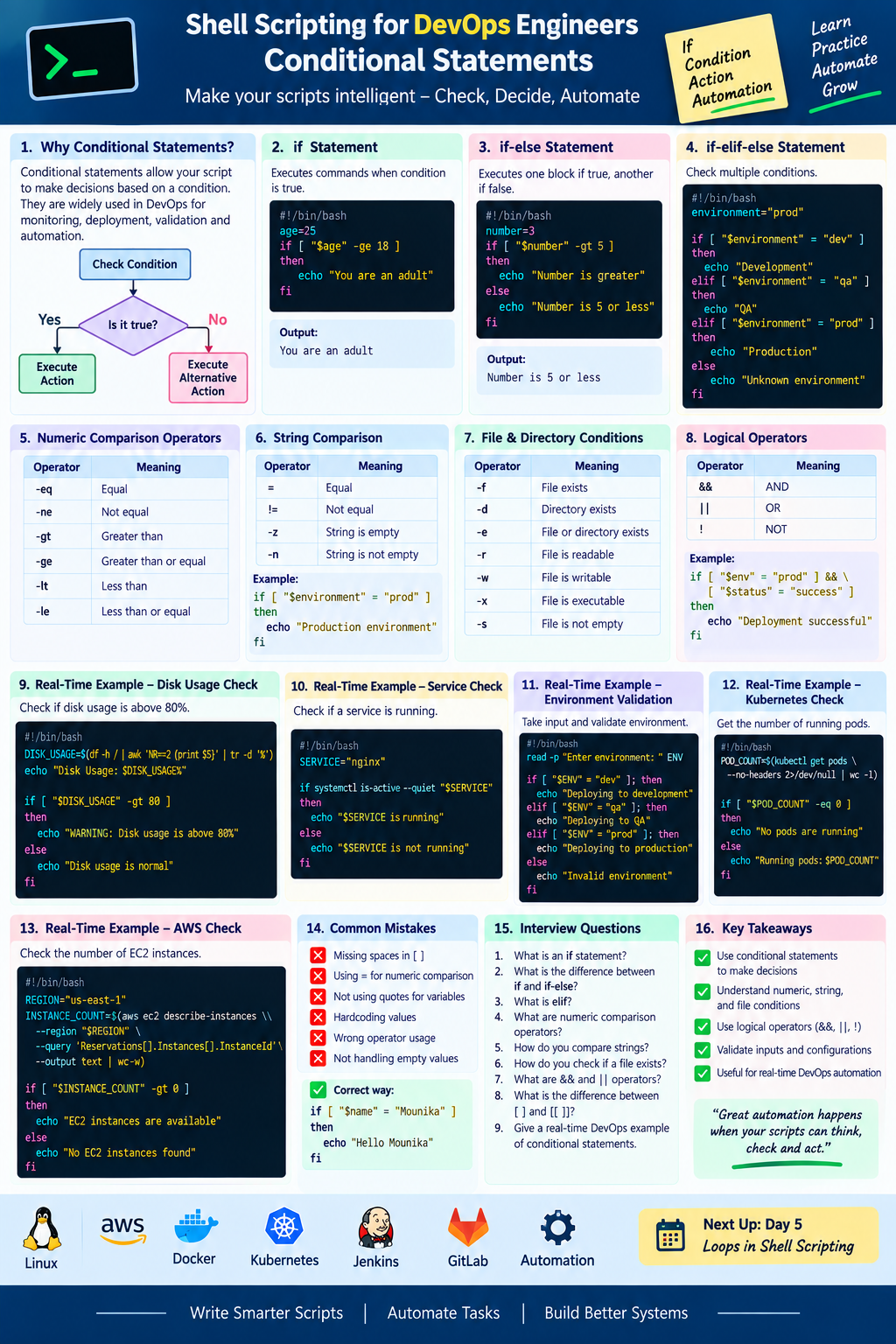
Shell Scripting for DevOps Engineers — Conditional Statements
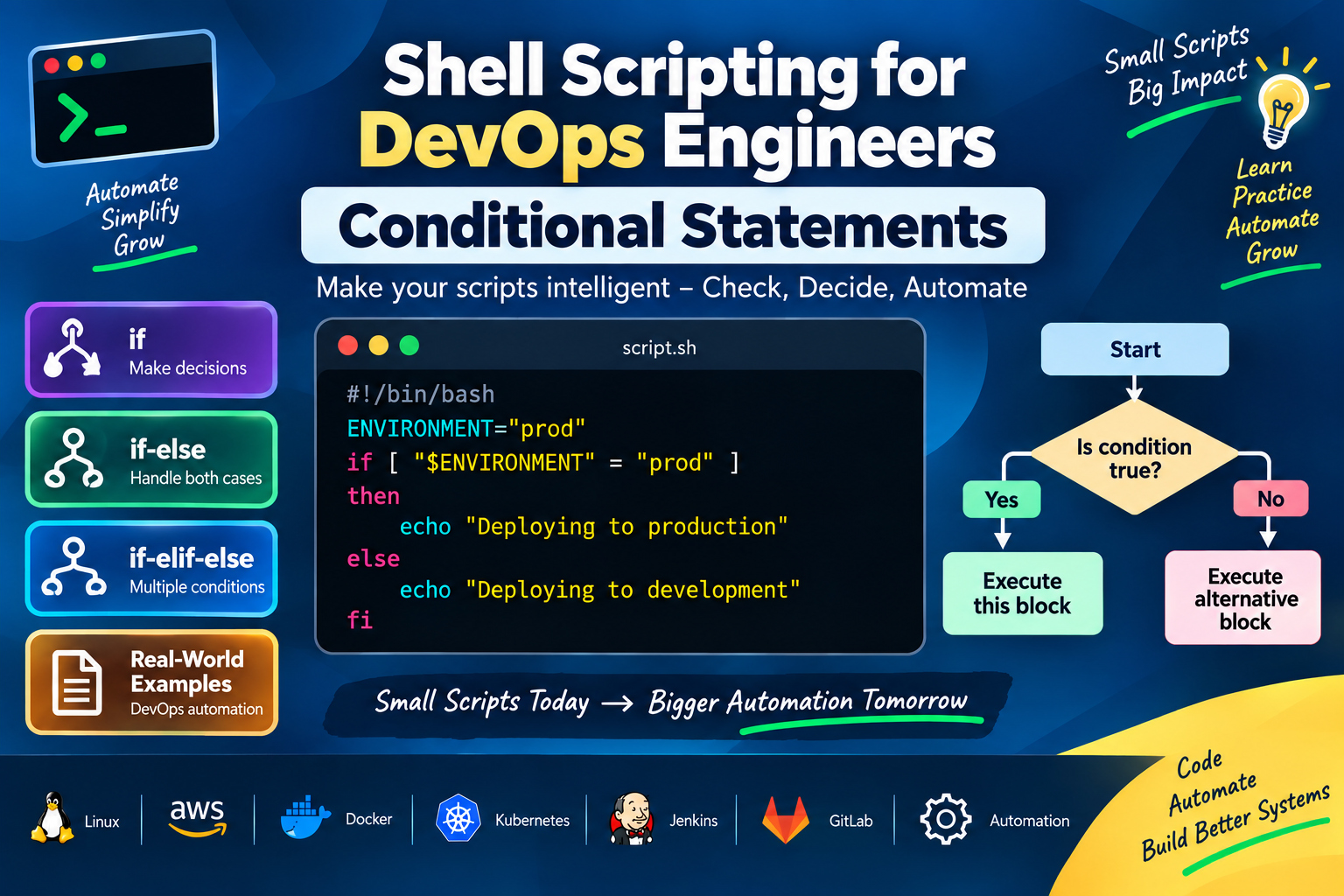
Make your scripts intelligent: check conditions, make decisions, and automate actions.
In the previous article, we learned about Input, Output, and Command Substitution in Shell Scripting.
In this article, we will learn about Conditional Statements.
Conditional statements are very important in DevOps because they allow scripts to make decisions automatically.
For example:
Check Disk Usage
      ↓
Is usage > 80%?
      ↓
   YES → Send Alert
      ↓
    NO → Continue
This type of logic is commonly used in monitoring, deployment, server administration, and automation.
What Are Conditional Statements?
A conditional statement allows a Shell script to check whether a condition is true or false and then execute the appropriate commands.
The basic structure is:
if [ condition ]
then
    command
fi
For example:
#!/bin/bash

age=25

if [ "$age" -ge 18 ]
then
    echo "You are an adult"
fi
Output:
You are an adult
1. if Statement
The if statement executes a block of commands when a condition is true.
Syntax:
if [ condition ]
then
    commands
fi
Example:
#!/bin/bash

number=10

if [ "$number" -gt 5 ]
then
    echo "Number is greater than 5"
fi
Output:
Number is greater than 5
2. if-else Statement
Sometimes we need to execute one block when the condition is true and another block when it is false.
Syntax:
if [ condition ]
then
    commands
else
    commands
fi
Example:
#!/bin/bash

number=3

if [ "$number" -gt 5 ]
then
    echo "Number is greater than 5"
else
    echo "Number is 5 or less"
fi
Output:
Number is 5 or less
3. if-elif-else Statement
When we need to check multiple conditions, we can use elif.
Syntax:
if [ condition1 ]
then
    commands
elif [ condition2 ]
then
    commands
else
    commands
fi
Example:
#!/bin/bash

environment="prod"

if [ "$environment" = "dev" ]
then
    echo "Development environment"
elif [ "$environment" = "qa" ]
then
    echo "QA environment"
elif [ "$environment" = "prod" ]
then
    echo "Production environment"
else
    echo "Unknown environment"
fi
Output:
Production environment
This type of condition is useful when the same script needs to behave differently depending on the environment.
4. Numeric Comparison Operators
Shell provides operators for comparing numbers.
| Operator | Meaning |
|---|---|
-eq |
Equal |
-ne |
Not equal |
-gt |
Greater than |
-ge |
Greater than or equal |
-lt |
Less than |
-le |
Less than or equal |
Example:
#!/bin/bash

CPU=75

if [ "$CPU" -gt 80 ]
then
    echo "High CPU usage"
else
    echo "CPU usage is normal"
fi
Output:
CPU usage is normal
5. String Comparison
We can also compare strings.
Common operators include:
=       Equal
!=      Not equal
-z      String is empty
-n      String is not empty
Example:
#!/bin/bash

environment="prod"

if [ "$environment" = "prod" ]
then
    echo "Production environment"
else
    echo "Non-production environment"
fi
Output:
Production environment
6. Checking Whether a Variable Is Empty
We can use -z to check whether a string is empty.
#!/bin/bash

APP_NAME=""

if [ -z "$APP_NAME" ]
then
    echo "Application name is empty"
else
    echo "Application name is $APP_NAME"
fi
Output:
Application name is empty
This is useful for validating configuration values before a deployment.
7. Checking Whether a Variable Is Not Empty
Use -n:
#!/bin/bash

APP_NAME="payment"

if [ -n "$APP_NAME" ]
then
    echo "Application name is configured"
else
    echo "Application name is empty"
fi
Output:
Application name is configured
8. File Conditions
Shell scripting provides several operators for checking files and directories.
| Operator | Meaning |
|---|---|
-f |
Regular file exists |
-d |
Directory exists |
-e |
File or directory exists |
-r |
File is readable |
-w |
File is writable |
-x |
File is executable |
-s |
File exists and is not empty |
9. Check Whether a File Exists
Example:
#!/bin/bash

FILE="/etc/hosts"

if [ -f "$FILE" ]
then
    echo "$FILE exists"
else
    echo "$FILE does not exist"
fi
Output:
/etc/hosts exists
This is useful before reading or processing configuration files.
10. Check Whether a Directory Exists
#!/bin/bash

DIRECTORY="/var/log"

if [ -d "$DIRECTORY" ]
then
    echo "$DIRECTORY exists"
else
    echo "$DIRECTORY does not exist"
fi
Output:
/var/log exists
11. Check Whether a File Is Executable
#!/bin/bash

FILE="deploy.sh"

if [ -x "$FILE" ]
then
    echo "$FILE is executable"
else
    echo "$FILE is not executable"
fi
This can be useful when validating scripts before executing them.
12. Logical Operators
We can combine multiple conditions.
Common operators are:
&&    AND
||    OR
!     NOT
Example using AND:
#!/bin/bash

environment="prod"
status="success"

if [ "$environment" = "prod" ] && [ "$status" = "success" ]
then
    echo "Production deployment completed successfully"
else
    echo "Deployment condition not satisfied"
fi
Both conditions must be true.
13. Using OR
The || operator means OR.
#!/bin/bash

environment="dev"

if [ "$environment" = "dev" ] || [ "$environment" = "qa" ]
then
    echo "Non-production environment"
else
    echo "Production environment"
fi
If either condition is true, the first block executes.
14. Using NOT
The ! operator reverses a condition.
Example:
#!/bin/bash

FILE="config.txt"

if [ ! -f "$FILE" ]
then
    echo "Configuration file is missing"
fi
This means:
If the file does NOT exist
        ↓
Print an error
15. Real-Time DevOps Example — Disk Usage
One of the most common Shell Scripting use cases is checking disk usage.
For example:
#!/bin/bash

DISK_USAGE=$(df -h / | awk 'NR==2 {print $5}' | tr -d '%')

echo "Disk Usage: $DISK_USAGE%"

if [ "$DISK_USAGE" -gt 80 ]
then
    echo "WARNING: Disk usage is above 80%"
else
    echo "Disk usage is normal"
fi
Example output:
Disk Usage: 65%
Disk usage is normal
If disk usage reaches 85%:
Disk Usage: 85%
WARNING: Disk usage is above 80%
This type of logic can be extended to monitoring and alerting systems.
16. Real-Time DevOps Example — Service Status
We can check whether a Linux service is running.
Example:
#!/bin/bash

SERVICE="nginx"

if systemctl is-active --quiet "$SERVICE"
then
    echo "$SERVICE is running"
else
    echo "$SERVICE is not running"
fi
Output:
nginx is running
This can be useful in server health-check scripts.
17. Real-Time DevOps Example — Deployment Validation
Suppose a deployment script receives an environment as input.
#!/bin/bash

read -p "Enter environment: " ENVIRONMENT

if [ "$ENVIRONMENT" = "dev" ]
then
    echo "Deploying to development"
elif [ "$ENVIRONMENT" = "qa" ]
then
    echo "Deploying to QA"
elif [ "$ENVIRONMENT" = "prod" ]
then
    echo "Deploying to production"
else
    echo "Invalid environment"
fi
Example:
Enter environment: prod
Deploying to production
This prevents the script from blindly continuing with an invalid environment.
18. Real-Time DevOps Example — Kubernetes
We can use conditional logic with Kubernetes commands.
#!/bin/bash

POD_COUNT=$(kubectl get pods --no-headers 2>/dev/null | wc -l)

if [ "$POD_COUNT" -eq 0 ]
then
    echo "No pods are currently running"
else
    echo "Running pods: $POD_COUNT"
fi
Here the script:
Gets the pod list.
Counts the pods.
Checks the count.
Displays an appropriate message.
This is a simple example of combining command substitution + conditions.
19. Real-Time DevOps Example — AWS
We can also use conditions with AWS CLI output.
For example:
#!/bin/bash

REGION="us-east-1"

INSTANCE_COUNT=$(aws ec2 describe-instances \
  --region "$REGION" \
  --query 'Reservations[].Instances[].InstanceId' \
  --output text | wc -w)

if [ "$INSTANCE_COUNT" -gt 0 ]
then
    echo "EC2 instances are available"
else
    echo "No EC2 instances found"
fi
This demonstrates how Shell Scripting can be combined with AWS CLI for automation.
20. Using [[ ]]
You may also see conditions written using:
[[ condition ]]
Example:
#!/bin/bash

ENVIRONMENT="prod"

if [[ "$ENVIRONMENT" == "prod" ]]
then
    echo "Production environment"
fi
For Bash-specific scripts, [[ ]] provides useful features and is generally more forgiving than the traditional [ ] syntax.
21. [ ] vs [[ ]]
You may encounter both styles:
[ "$ENVIRONMENT" = "prod" ]
and:
[[ "$ENVIRONMENT" == "prod" ]]
For Bash scripts, [[ ]] is often preferred because it provides safer and more expressive conditional testing.
However, you should recognize both forms because existing scripts may use either.
22. Practical Script — Server Health Check
Let's combine several concepts into one script.
#!/bin/bash

HOSTNAME=$(hostname)
DISK_USAGE=$(df -h / | awk 'NR==2 {print $5}' | tr -d '%')
UPTIME=$(uptime -p)

echo "===== SERVER HEALTH CHECK ====="
echo "Hostname : $HOSTNAME"
echo "Uptime   : $UPTIME"
echo "Disk     : $DISK_USAGE%"
echo

if [ "$DISK_USAGE" -gt 80 ]
then
    echo "WARNING: Disk usage is high"
else
    echo "Disk usage is normal"
fi

echo "==============================="
Example output:
===== SERVER HEALTH CHECK =====
Hostname : web-server-01
Uptime   : up 5 days, 3 hours
Disk     : 65%

Disk usage is normal
===============================
This is a good example of how DevOps engineers can combine:
Command Substitution
        ↓
Variables
        ↓
Conditions
        ↓
Automation
23. Common Mistakes
Mistake 1: Incorrect Spaces
❌ Incorrect:
if ["$name" = "Mounika"]
✅ Correct:
if [ "$name" = "Mounika" ]
Mistake 2: Using = for Numeric Comparison
❌ Avoid:
if [ "$number" = 10 ]
For numeric equality, use:
if [ "$number" -eq 10 ]
Mistake 3: Forgetting Quotes
Prefer:
if [ "$APP_NAME" = "payment" ]
instead of:
if [ $APP_NAME = payment ]
Quoting variables is a good habit and helps prevent word-splitting problems.
Practical Exercise
Create a script called:
system-check.sh
Your script should:
Get the current hostname.
Check disk usage.
Check whether
/var/logexists.Check whether Nginx is running.
Print appropriate messages.
Display a warning if disk usage is above 80%.
Try to build it yourself before looking at a solution.
Key Takeaways
In this article, we learned:
What conditional statements are
ifif-elseif-elif-elseNumeric comparisons
String comparisons
File and directory conditions
Logical operators
&&||![ ][[ ]]Disk-usage checks
Service checks
AWS CLI conditions
Kubernetes conditions
Real-time DevOps automation examples
Conditional statements make Shell scripts intelligent by allowing them to check situations and take the appropriate action automatically.