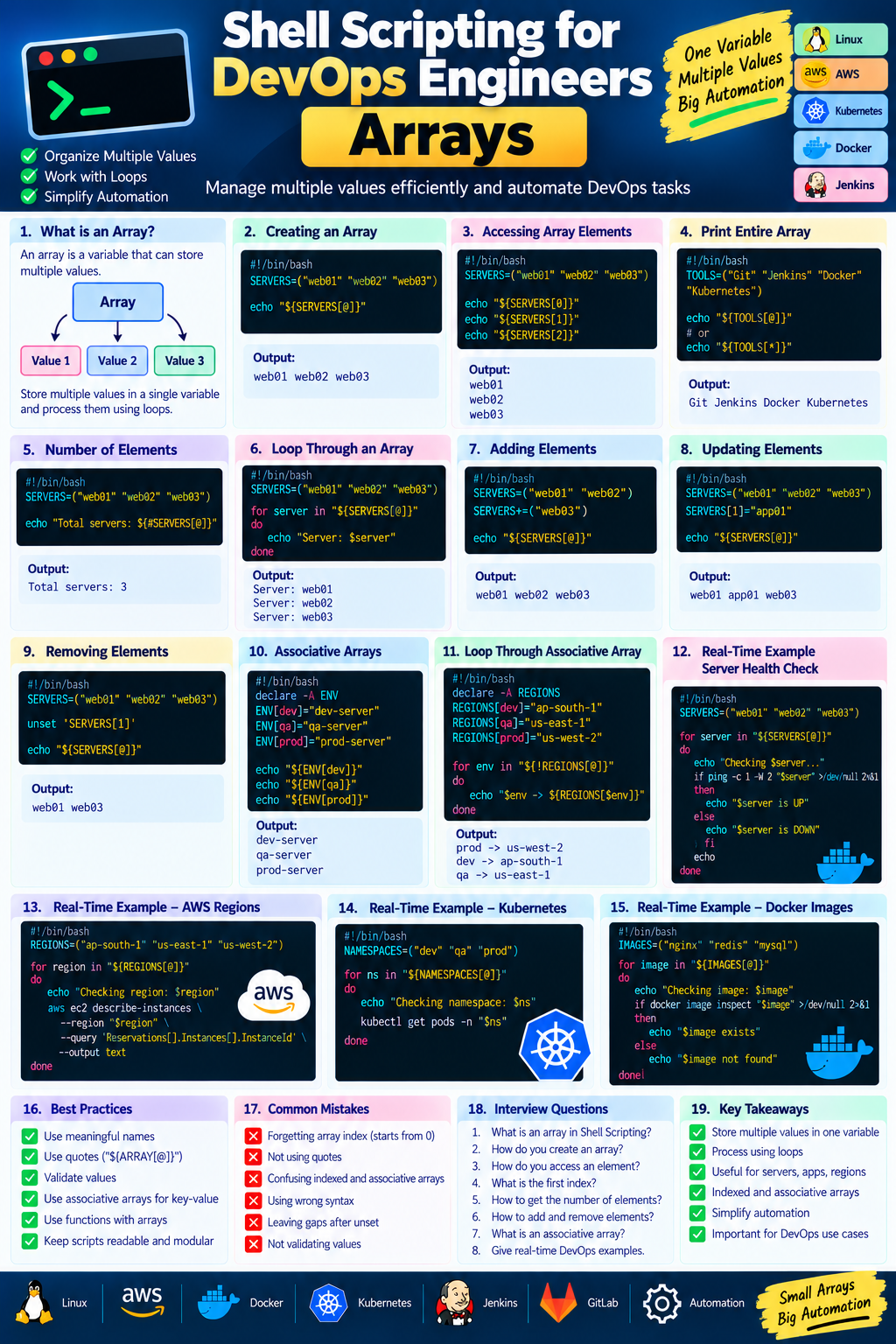
Shell Scripting for DevOps Engineers — Arrays
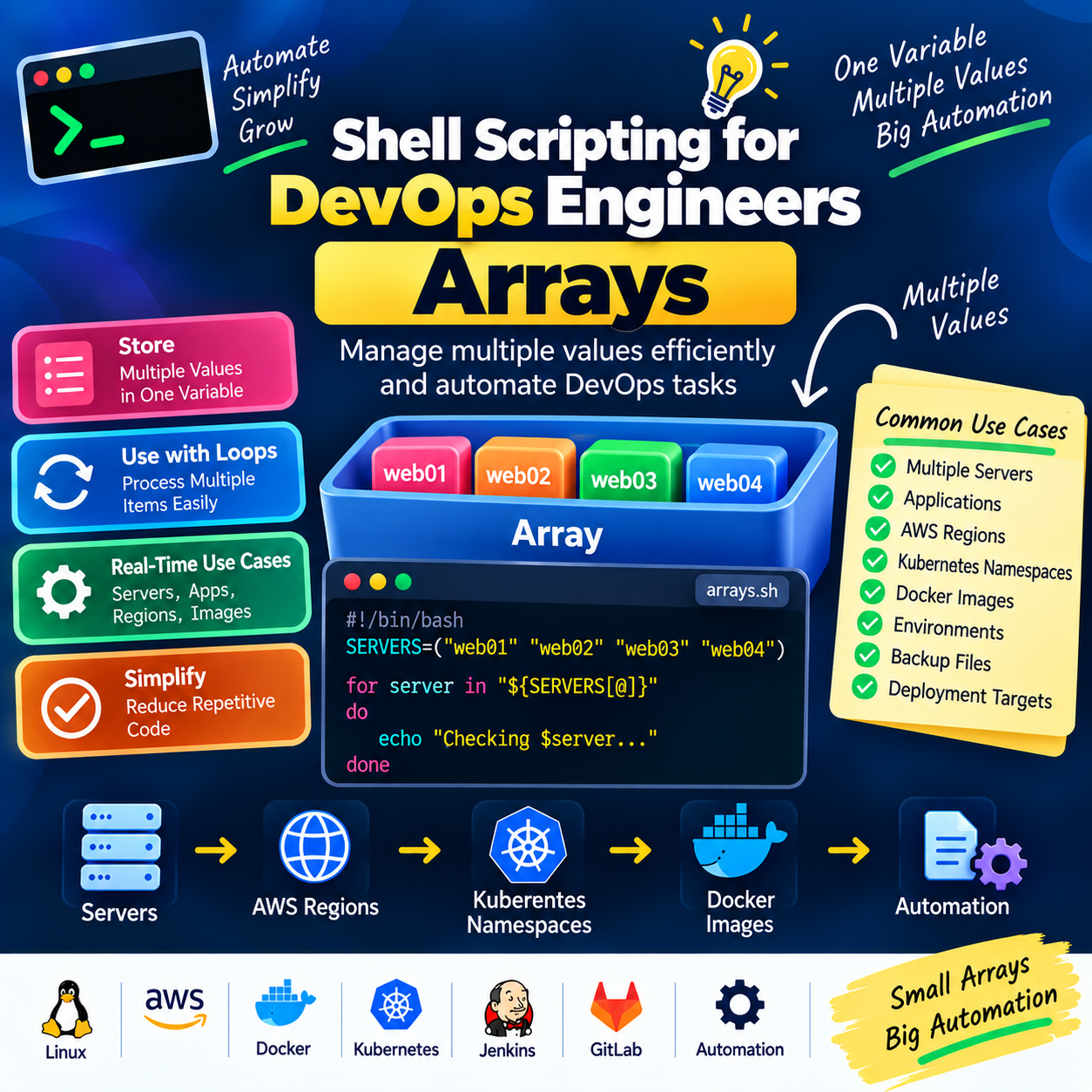
Manage multiple values efficiently with Arrays and automate multiple servers, applications, environments, and resources using Shell Scripting.
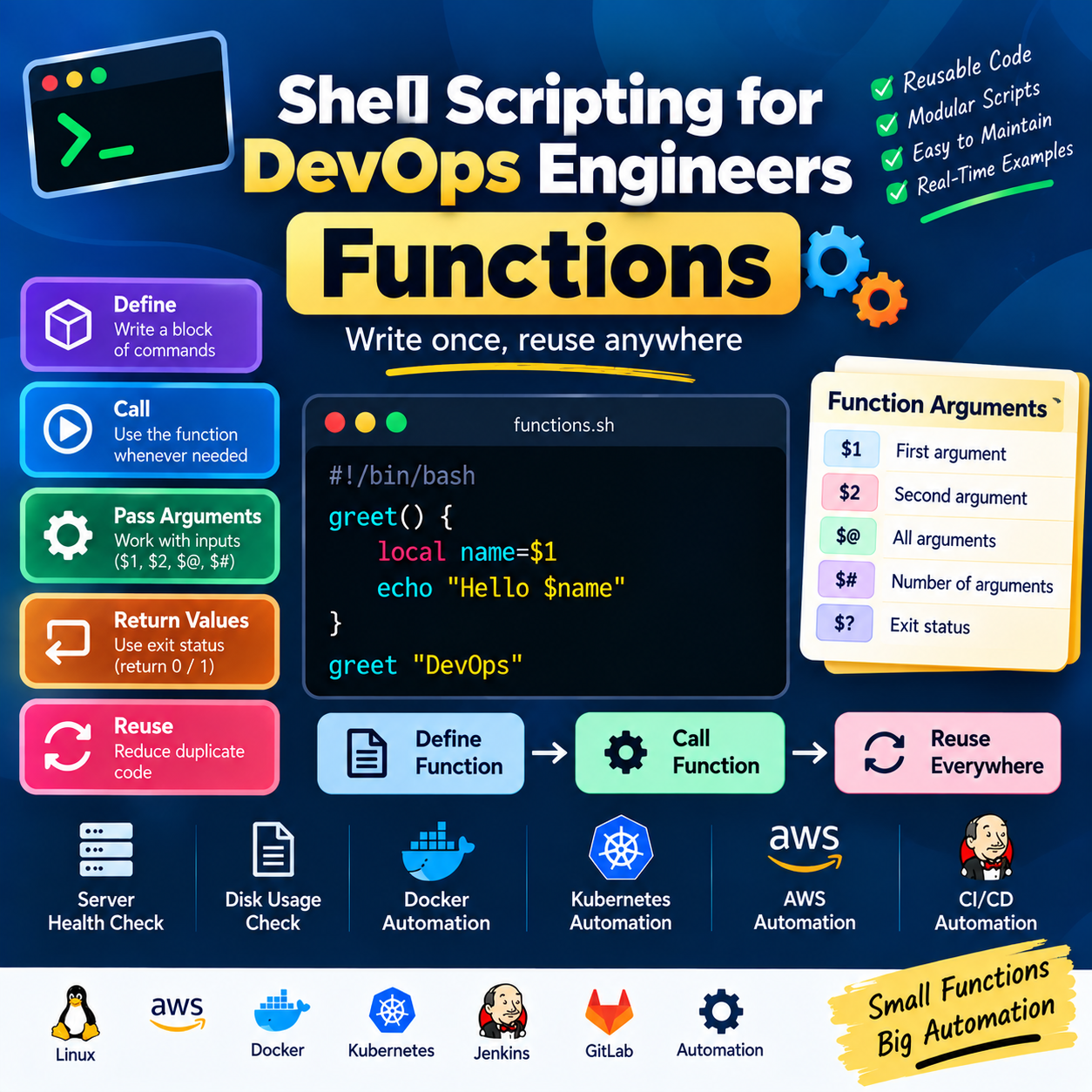
In the previous article, we learned about Functions in Shell Scripting.
Functions help us create reusable and maintainable code.
In this article, we will learn about Arrays in Shell Scripting.
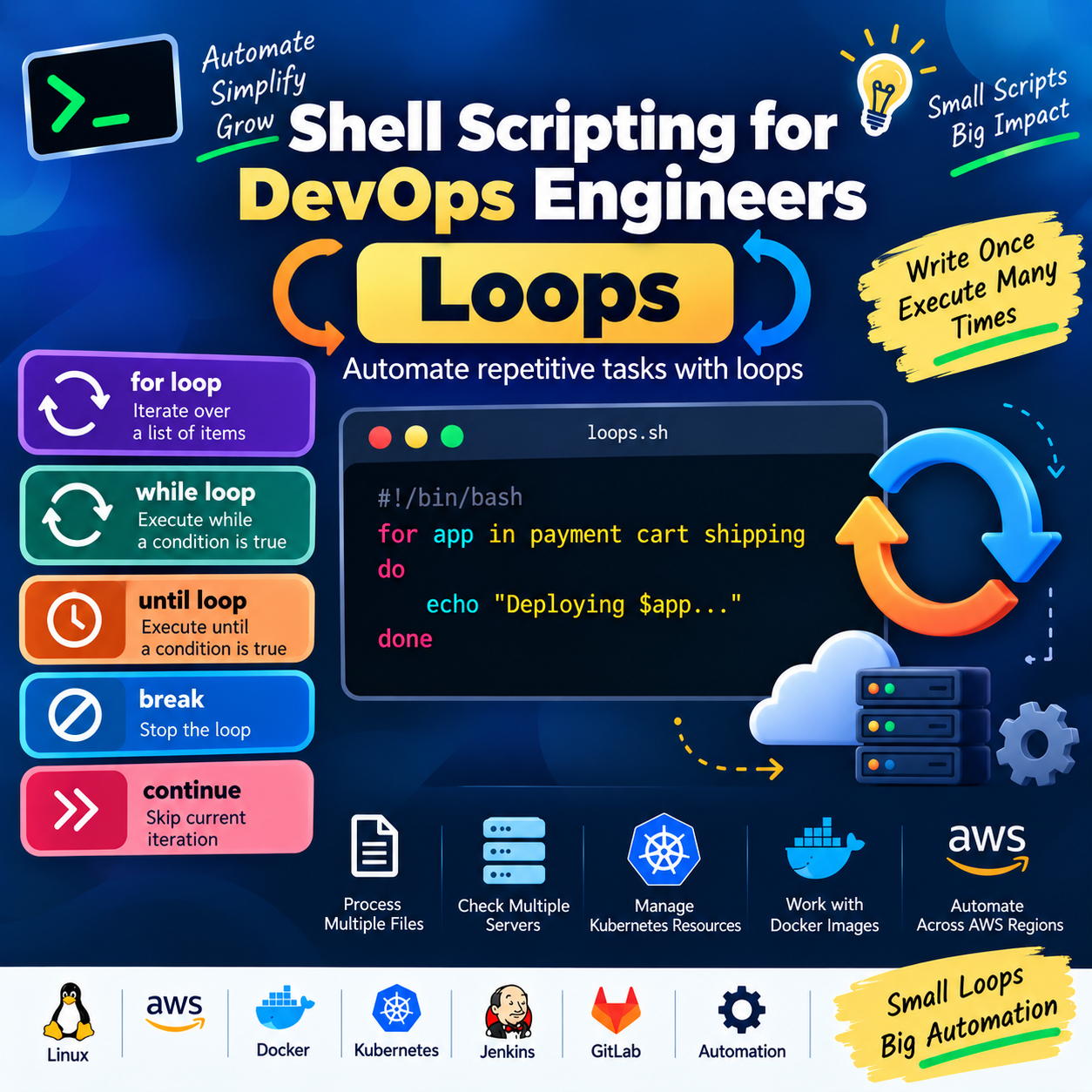
Arrays are useful when we need to store multiple values in a single variable and process them using loops.
What is an Array?
An array is a variable that can store multiple values.
Instead of creating separate variables:
SERVER1="web01"
SERVER2="web02"
SERVER3="web03"
we can use an array:
SERVERS=("web01" "web02" "web03")
Now all three server names are stored in one variable.
Why Are Arrays Useful in DevOps?
Arrays are useful for managing:
Multiple servers
Multiple applications
AWS regions
Kubernetes namespaces
Docker images
File names
Environments
Deployment targets
Backup locations
For example:
Servers
   ↓
Array
   ↓
Loop
   ↓
Health Check
   ↓
Automation
1. Creating an Array
The basic syntax is:
ARRAY=("value1" "value2" "value3")
Example:
#!/bin/bash

SERVERS=("web01" "web02" "web03")

echo "Servers: ${SERVERS[@]}"
Output:
Servers: web01 web02 web03
2. Accessing an Array Element
Bash arrays use indexes.
The first element starts with index 0.
Example:
#!/bin/bash

SERVERS=("web01" "web02" "web03")

echo "${SERVERS[0]}"
echo "${SERVERS[1]}"
echo "${SERVERS[2]}"
Output:
web01
web02
web03
Remember:
Index 0 → web01
Index 1 → web02
Index 2 → web03
3. Print the Entire Array
We can use:
${ARRAY[@]}
Example:
#!/bin/bash

TOOLS=("Git" "Jenkins" "Docker" "Kubernetes")

echo "${TOOLS[@]}"
Output:
Git Jenkins Docker Kubernetes
4. Using * with Arrays
You may also see:
${ARRAY[*]}
Example:
#!/bin/bash

TOOLS=("Git" "Jenkins" "Docker" "Kubernetes")

echo "${TOOLS[*]}"
Both [@] and [*] can represent all array elements, but their behavior differs when quoted.
For example:
"${TOOLS[@]}"
preserves each array element as a separate word, which is generally preferred when iterating over elements.
5. Find the Number of Elements
We can use:
${#ARRAY[@]}
Example:
#!/bin/bash

SERVERS=("web01" "web02" "web03")

echo "Number of servers: ${#SERVERS[@]}"
Output:
Number of servers: 3
6. Loop Through an Array
This is one of the most useful array operations.
#!/bin/bash

SERVERS=("web01" "web02" "web03")

for server in "${SERVERS[@]}"
do
    echo "Server: $server"
done
Output:
Server: web01
Server: web02
Server: web03
This pattern is extremely useful in DevOps automation.
7. Array with for Loop
We can combine arrays and loops to perform an operation on every item.
#!/bin/bash

TOOLS=("Git" "Docker" "Jenkins" "Terraform")

for tool in "${TOOLS[@]}"
do
    echo "DevOps Tool: $tool"
done
Output:
DevOps Tool: Git
DevOps Tool: Docker
DevOps Tool: Jenkins
DevOps Tool: Terraform
8. Adding Elements to an Array
We can add a new element using:
ARRAY+=("value")
Example:
#!/bin/bash

SERVERS=("web01" "web02")

SERVERS+=("web03")

echo "${SERVERS[@]}"
Output:
web01 web02 web03
9. Adding Multiple Elements
We can add multiple values:
#!/bin/bash

SERVERS=("web01" "web02")

SERVERS+=("web03" "web04")

echo "${SERVERS[@]}"
Output:
web01 web02 web03 web04
10. Updating an Array Element
We can modify an existing element using its index.
#!/bin/bash

SERVERS=("web01" "web02" "web03")

SERVERS[1]="app01"

echo "${SERVERS[@]}"
Output:
web01 app01 web03
The value at index 1 was changed.
11. Removing an Array Element
We can use unset.
#!/bin/bash

SERVERS=("web01" "web02" "web03")

unset 'SERVERS[1]'

echo "${SERVERS[@]}"
The second element is removed.
One important point: unset can leave a gap in the indexes.
12. Associative Arrays
Bash also supports associative arrays.
Instead of numeric indexes:
0
1
2
we can use meaningful keys:
dev
qa
prod
Example:
#!/bin/bash

declare -A ENVIRONMENTS

ENVIRONMENTS[dev]="dev-server"
ENVIRONMENTS[qa]="qa-server"
ENVIRONMENTS[prod]="prod-server"

echo "${ENVIRONMENTS[dev]}"
echo "${ENVIRONMENTS[qa]}"
echo "${ENVIRONMENTS[prod]}"
Output:
dev-server
qa-server
prod-server
Associative arrays are useful when we want to map one value to another.
13. Associative Array — DevOps Example
For example, we can map environments to AWS regions.
#!/bin/bash

declare -A REGIONS

REGIONS[dev]="ap-south-1"
REGIONS[qa]="us-east-1"
REGIONS[prod]="us-west-2"

echo "Dev Region: ${REGIONS[dev]}"
echo "QA Region: ${REGIONS[qa]}"
echo "Prod Region: ${REGIONS[prod]}"
Output:
Dev Region: ap-south-1
QA Region: us-east-1
Prod Region: us-west-2
14. Loop Through an Associative Array
We can retrieve all keys using:
"${!ARRAY[@]}"
Example:
#!/bin/bash

declare -A REGIONS

REGIONS[dev]="ap-south-1"
REGIONS[qa]="us-east-1"
REGIONS[prod]="us-west-2"

for environment in "${!REGIONS[@]}"
do
    echo "$environment -> ${REGIONS[$environment]}"
done
Output order for associative arrays is not guaranteed.
Example output:
prod -> us-west-2
dev -> ap-south-1
qa -> us-east-1
15. Array of Applications
Arrays are useful for application deployments.
#!/bin/bash

APPLICATIONS=("frontend" "catalogue" "user" "cart" "payment")

for app in "${APPLICATIONS[@]}"
do
    echo "Deploying application: $app"
done
Output:
Deploying application: frontend
Deploying application: catalogue
Deploying application: user
Deploying application: cart
Deploying application: payment
This can be extended with actual deployment commands.
16. Real-Time DevOps Example — Server Health Check
Let's use an array to check multiple servers.
#!/bin/bash

SERVERS=("web01" "web02" "web03")

for server in "${SERVERS[@]}"
do
    echo "Checking $server..."

    if ping -c 1 -W 2 "$server" >/dev/null 2>&1
    then
        echo "$server is UP"
    else
        echo "$server is DOWN"
    fi

    echo
done
Here we combine:
Array
  ↓
For Loop
  ↓
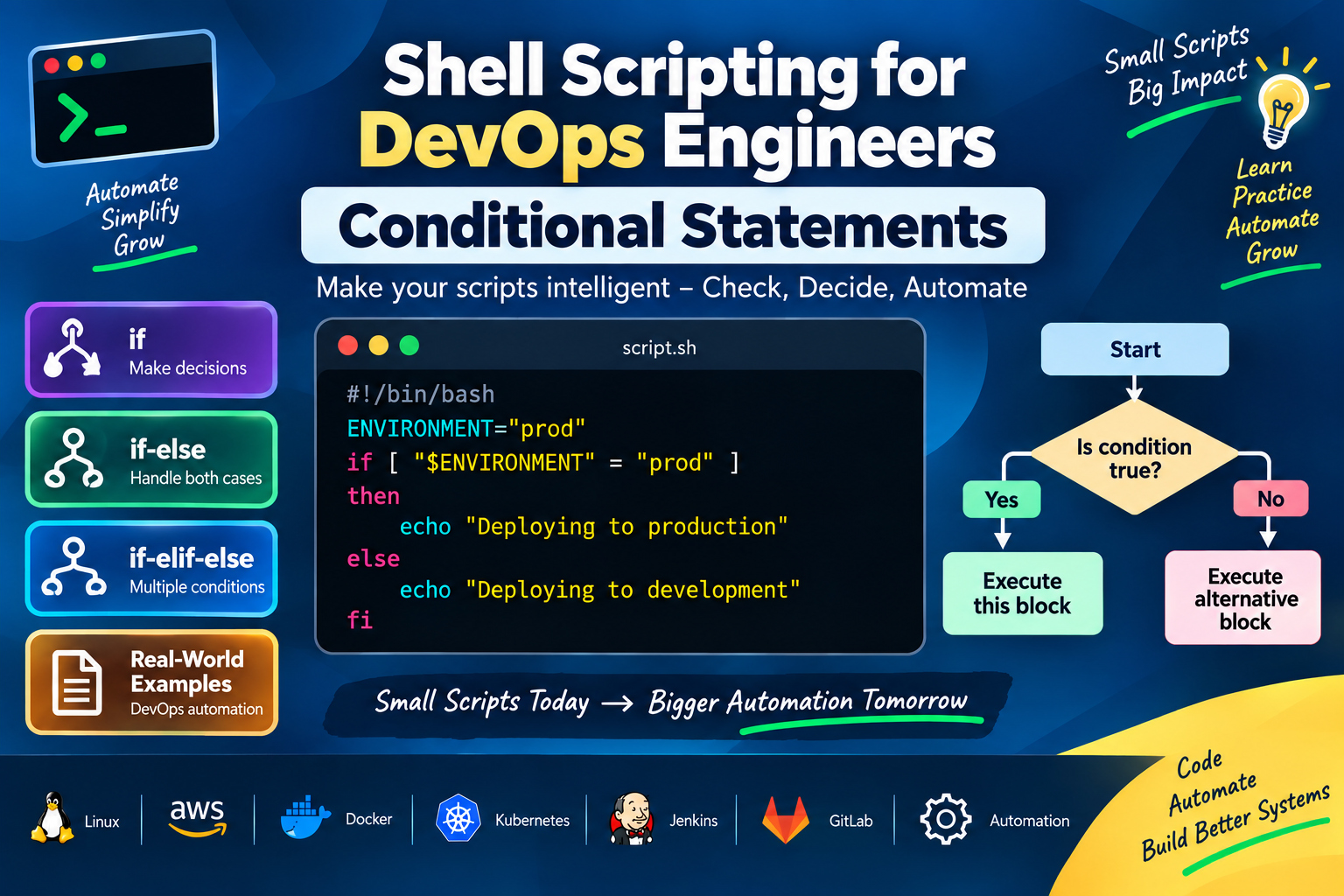
If Condition
  ↓
Ping
  ↓
Server Health Check
This is a simple example of DevOps automation.
17. Real-Time DevOps Example — AWS Regions
We can store AWS regions in an array.
#!/bin/bash

REGIONS=("ap-south-1" "us-east-1" "us-west-2")

for region in "${REGIONS[@]}"
do
    echo "Checking AWS region: $region"

    aws ec2 describe-instances \
        --region "$region" \
        --query 'Reservations[].Instances[].InstanceId' \
        --output text
done
This allows the same AWS operation to run across multiple regions.
18. Real-Time DevOps Example — Kubernetes Namespaces
We can store Kubernetes namespaces in an array.
#!/bin/bash

NAMESPACES=("dev" "qa" "prod")

for namespace in "${NAMESPACES[@]}"
do
    echo "Checking namespace: $namespace"

    kubectl get pods -n "$namespace"
done
This can be useful for checking workloads across multiple environments.
19. Real-Time DevOps Example — Docker Images
We can store Docker images in an array.
#!/bin/bash

IMAGES=("nginx" "redis" "mysql")

for image in "${IMAGES[@]}"
do
    echo "Checking Docker image: $image"

    docker image inspect "$image" >/dev/null 2>&1

    if [ "$?" -eq 0 ]
    then
        echo "$image exists"
    else
        echo "$image not found"
    fi
done
A cleaner approach can also use the command directly in the condition:
if docker image inspect "$image" >/dev/null 2>&1
then
    echo "$image exists"
else
    echo "$image not found"
fi
20. Array with Functions
Arrays become even more powerful when combined with functions.
#!/bin/bash

SERVERS=("web01" "web02" "web03")

check_server() {
    local server="$1"

    if ping -c 1 -W 2 "$server" >/dev/null 2>&1
    then
        echo "$server is UP"
    else
        echo "$server is DOWN"
    fi
}

for server in "${SERVERS[@]}"
do
    check_server "$server"
done
Here we combine:
Array
   +
Function
   +
Loop
   +
Condition
   =
Reusable Automation
21. Reading User Input into an Array
We can read multiple values from the user.
#!/bin/bash

read -p "Enter server names: " -a SERVERS

for server in "${SERVERS[@]}"
do
    echo "Server: $server"
done
Example input:
web01 web02 web03
Output:
Server: web01
Server: web02
Server: web03
The -a option stores the input as an array.
22. Array from Command Output
We can also create an array from command output.
Example:
#!/bin/bash

FILES=($(ls))

for file in "${FILES[@]}"
do
    echo "File: $file"
done
However, using command substitution with ls can behave unexpectedly when filenames contain spaces or special characters.
For robust scripts, prefer safer approaches such as find with appropriate handling or Bash globbing where possible.
For example:
for file in ./*
do
    echo "File: $file"
done
23. Array Length
We can check how many values are present:
#!/bin/bash

APPLICATIONS=("frontend" "backend" "payment")

COUNT=${#APPLICATIONS[@]}

echo "Total applications: $COUNT"
Output:
Total applications: 3
This can be useful for validation and reporting.
24. Accessing Array Indexes
We can get all indexes using:
${!ARRAY[@]}
Example:
#!/bin/bash

SERVERS=("web01" "web02" "web03")

for index in "${!SERVERS[@]}"
do
    echo "Index: $index"
    echo "Server: ${SERVERS[$index]}"
done
Output:
Index: 0
Server: web01
Index: 1
Server: web02
Index: 2
Server: web03
25. Complete DevOps Example — Deployment Script
Let's combine arrays, functions, loops, and conditions.
#!/bin/bash

APPLICATIONS=("frontend" "catalogue" "user" "cart" "payment")

deploy_application() {
    local application="$1"

    echo "Starting deployment for: $application"

    # Add your actual deployment command here.

    if [ "$?" -eq 0 ]
    then
        echo "$application deployment completed"
    else
        echo "$application deployment failed"
    fi

    echo "--------------------------"
}

for app in "${APPLICATIONS[@]}"
do
    deploy_application "$app"
done
This creates a reusable structure for deploying multiple applications.
26. Complete DevOps Example — Environment Mapping
Let's create an environment-to-server mapping.
#!/bin/bash

declare -A SERVERS

SERVERS[dev]="dev.example.com"
SERVERS[qa]="qa.example.com"
SERVERS[prod]="prod.example.com"

check_environment() {
    local environment="$1"
    local server="${SERVERS[$environment]}"

    if [ -z "$server" ]
    then
        echo "Invalid environment: $environment"
        return 1
    fi

    echo "Environment: $environment"
    echo "Server: $server"
}

check_environment dev
check_environment qa
check_environment prod
This pattern can be useful when automation needs different configuration for each environment.
27. Array Best Practices
1. Quote array expansions
Prefer:
"${SERVERS[@]}"
instead of:
${SERVERS[@]}
2. Use meaningful names
Prefer:
SERVERS
instead of:
A
3. Use functions with arrays
This keeps large scripts organized.
4. Validate values
Before using an array element, make sure it contains the expected value.
5. Use associative arrays when key-value mapping is needed
Example:
dev  → server1
qa   → server2
prod → server3
28. Common Mistakes
Mistake 1: Forgetting the index
❌ Incorrect:
echo "$SERVERS"
For an array, use:
echo "${SERVERS[0]}"
or:
echo "${SERVERS[@]}"
Mistake 2: Forgetting quotes
Prefer:
for server in "${SERVERS[@]}"
This handles array elements more safely.
Mistake 3: Assuming the first index is 1
Bash indexed arrays start at:
0
So:
0 → First element
1 → Second element
2 → Third element
Mistake 4: Confusing indexed and associative arrays
Indexed array:
SERVERS=("web01" "web02")
Associative array:
declare -A SERVERS
The second form uses named keys.
Practical Exercise
Create a script called:
devops-tools.sh
Create an array containing:
Git
Jenkins
Docker
Kubernetes
Terraform
Ansible
Your script should:
Print all tools.
Print the total number of tools.
Loop through each tool.
Print the tool name with its index.
Add one more tool.
Display the updated array.
Expected concept:
DevOps Tools
     ↓
Array
     ↓
Loop
     ↓
Index + Value
     ↓
Automation
Key Takeaways
In this article, we learned:
What arrays are
Creating arrays
Accessing array elements
Printing all elements
Array length
Adding elements
Updating elements
Removing elements
Indexed arrays
Associative arrays
Looping through arrays
Functions with arrays
AWS automation
Kubernetes automation
Docker automation
Deployment automation
The important pattern to remember is:
Array
  ↓
Loop
  ↓
Condition / Function
  ↓
Automation
Arrays allow DevOps engineers to manage multiple resources efficiently and automate repetitive operations with less code.