Shell Scripting for DevOps Engineers — Loops
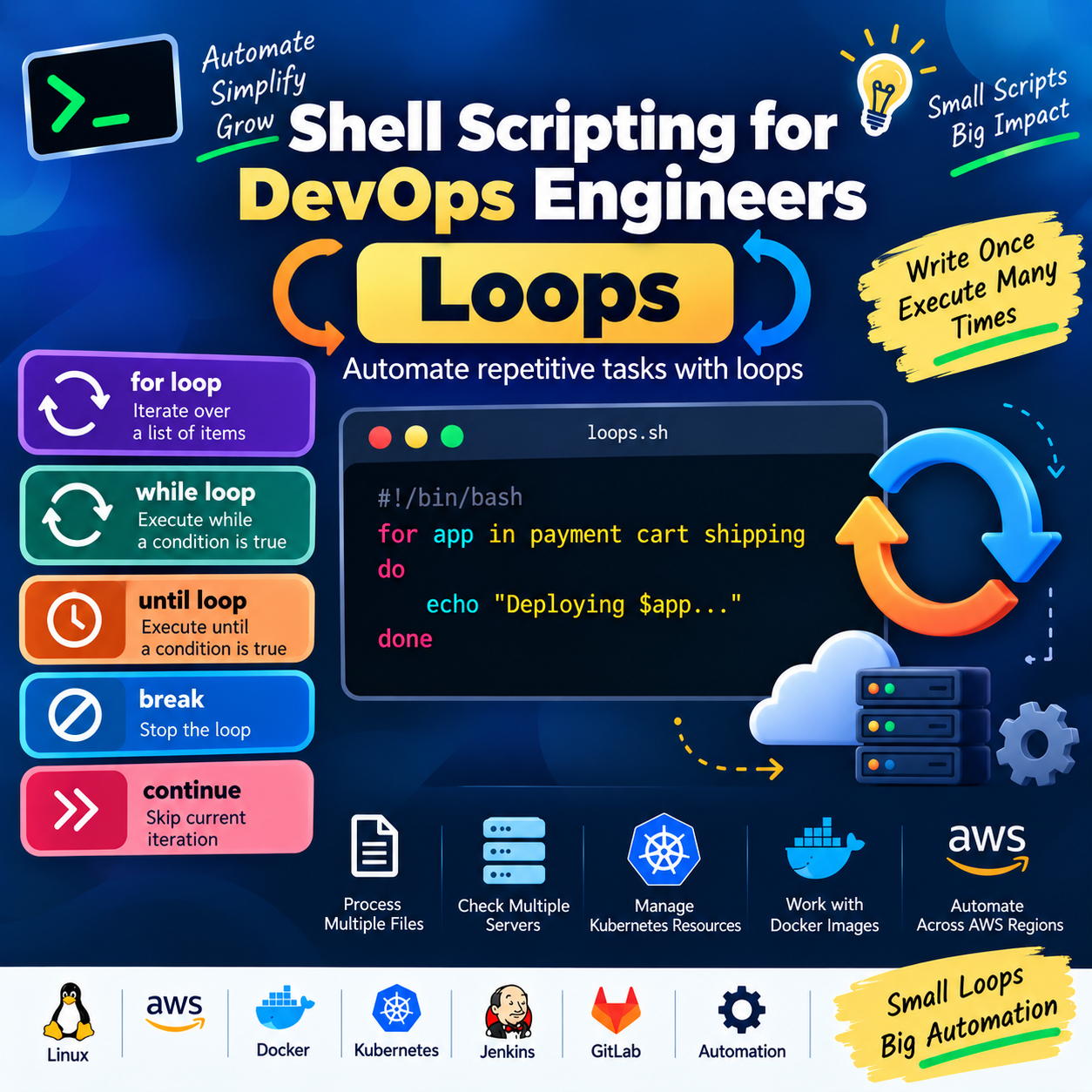
Automate repetitive tasks with loops instead of writing the same command again and again.
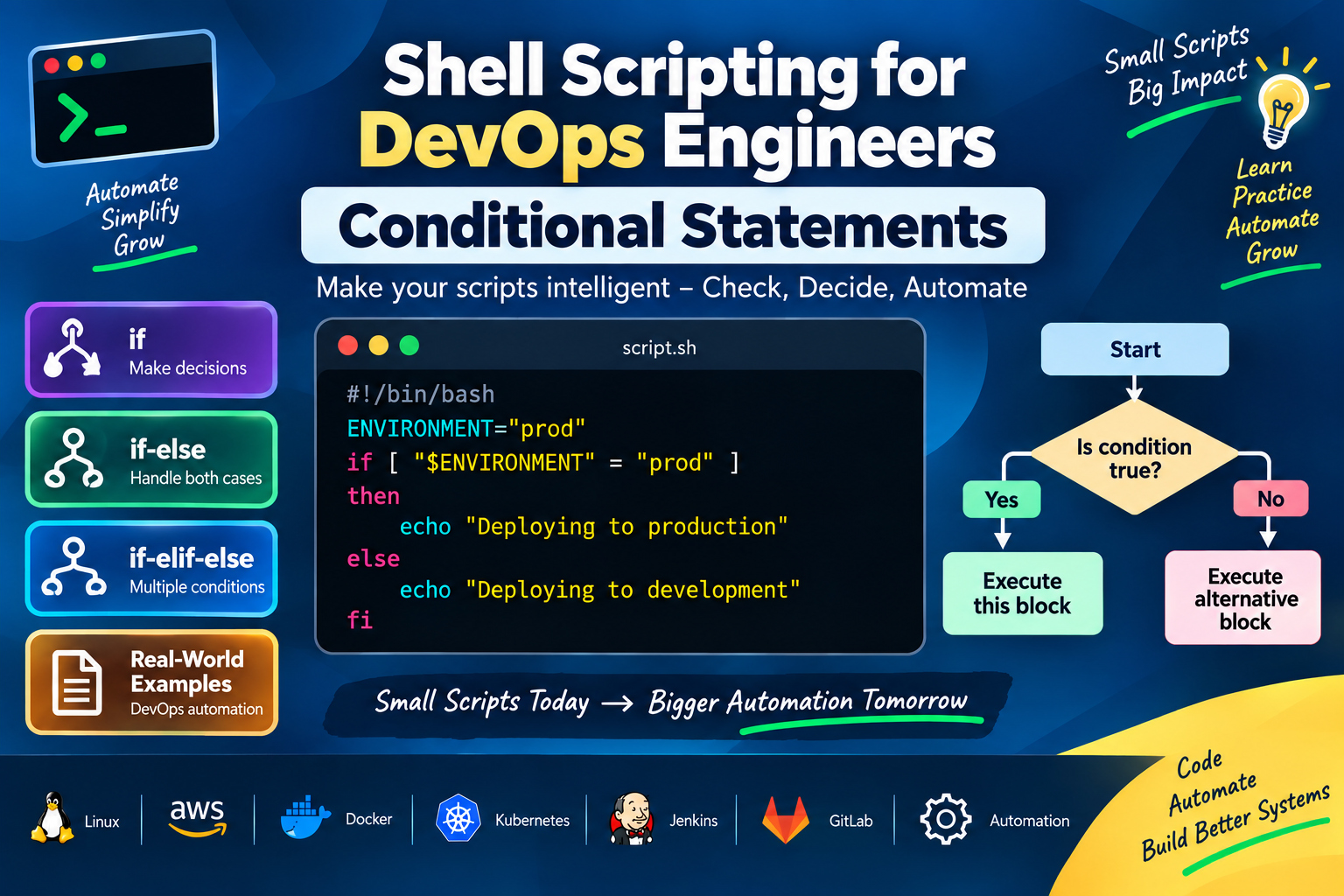
In the previous article, we learned about Conditional Statements in Shell Scripting.
Conditional statements help our scripts make decisions.
Now let's learn about Loops.
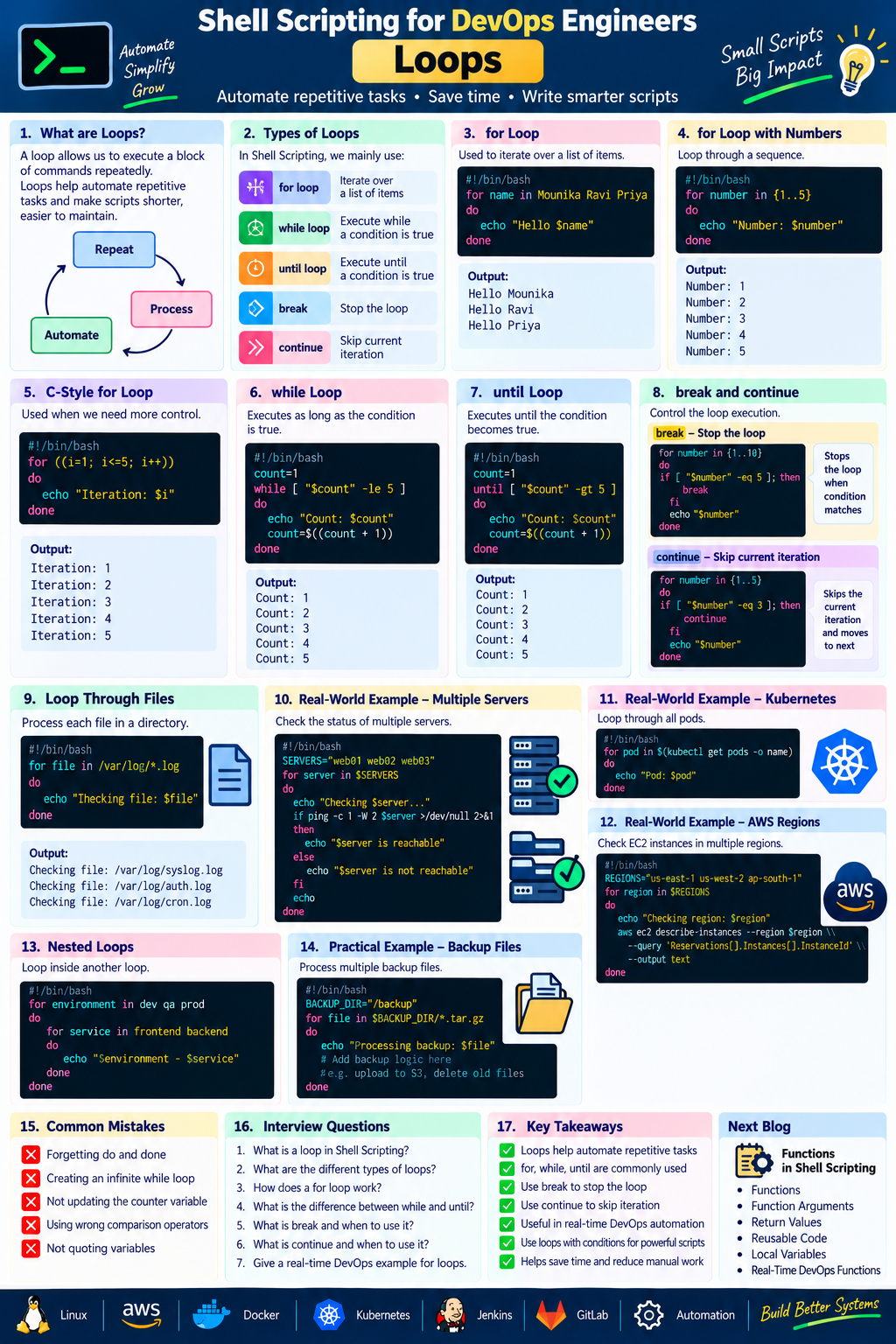
Loops are one of the most useful concepts in Shell Scripting because DevOps engineers frequently need to perform the same operation on multiple files, servers, applications, Docker images, Kubernetes resources, or environments.
What is a Loop?
A loop allows us to execute a block of commands repeatedly.
Instead of writing:
echo "Server 1"
echo "Server 2"
echo "Server 3"
echo "Server 4"
we can use a loop:
for server in server1 server2 server3 server4
do
    echo "$server"
done
Output:
server1
server2
server3
server4
This makes our scripts shorter, reusable, and easier to maintain.
Types of Loops in Shell Scripting
The most commonly used Bash loops are:
for loop
   ↓
while loop
   ↓
until loop
We also have loop-control statements:
break
continue
Let's understand each one.
1. for Loop
The for loop is commonly used when we have a list of items and want to process each item.
Syntax:
for variable in list
do
    commands
done
Example:
#!/bin/bash

for name in Mounika Ravi Priya
do
    echo "Hello $name"
done
Output:
Hello Mounika
Hello Ravi
Hello Priya
2. Loop Through Numbers
We can use a for loop to work with numbers.
#!/bin/bash

for number in 1 2 3 4 5
do
    echo "Number: $number"
done
Output:
Number: 1
Number: 2
Number: 3
Number: 4
Number: 5
3. Using {1..10}
Bash provides a convenient way to generate a sequence.
#!/bin/bash

for number in {1..10}
do
    echo "$number"
done
Output:
1
2
3
4
5
6
7
8
9
10
This is useful when we need to repeat an operation a fixed number of times.
4. Using C-Style for Loop
Bash also supports a C-style loop.
#!/bin/bash

for ((i=1; i<=5; i++))
do
    echo "Iteration: $i"
done
Output:
Iteration: 1
Iteration: 2
Iteration: 3
Iteration: 4
Iteration: 5
The three parts are:
i=1
  ↓
Starting value

i<=5
  ↓
Condition

i++
  ↓
Increment
5. Loop Through Files
This is a very useful DevOps example.
Suppose a directory contains multiple log files.
We can use:
#!/bin/bash

for file in /var/log/*.log
do
    echo "Checking file: $file"
done
The loop processes each matching .log file.
This approach can be useful for log analysis and maintenance scripts.
6. Loop Through Servers
Suppose we have multiple servers:
#!/bin/bash

SERVERS="web01 web02 web03"

for server in $SERVERS
do
    echo "Checking server: $server"
done
Output:
Checking server: web01
Checking server: web02
Checking server: web03
We can later replace the echo command with an actual health check.
For example:
for server in $SERVERS
do
    ping -c 1 "$server"
done
7. Real-Time DevOps Example — Check Multiple Servers
#!/bin/bash

SERVERS="web01 web02 web03"

for server in $SERVERS
do
    echo "Checking $server..."

    if ping -c 1 -W 2 "$server" >/dev/null 2>&1
    then
        echo "$server is reachable"
    else
        echo "$server is not reachable"
    fi

    echo
done
Here we combine:
for loop
   +
if condition
   +
ping
This is a simple server-health-check automation script.
8. while Loop
A while loop executes commands as long as a condition remains true.
Syntax:
while [ condition ]
do
    commands
done
Example:
#!/bin/bash

count=1

while [ "$count" -le 5 ]
do
    echo "Count: $count"
    count=$((count + 1))
done
Output:
Count: 1
Count: 2
Count: 3
Count: 4
Count: 5
The loop stops when:
count <= 5
becomes false.
9. Why Increment Is Important
Consider:
count=1

while [ "$count" -le 5 ]
do
    echo "$count"
done
There is no change to count.
Therefore, the condition remains true and the loop can run indefinitely.
We should update the variable:
count=$((count + 1))
Complete example:
count=1

while [ "$count" -le 5 ]
do
    echo "$count"
    count=$((count + 1))
done
10. Real-Time Example — Retry Logic
Loops are useful when we want to retry an operation.
For example:
#!/bin/bash

count=1
max_attempts=3

while [ "$count" -le "$max_attempts" ]
do
    echo "Attempt $count"

    if curl -fsS https://example.com >/dev/null
    then
        echo "Application is reachable"
        break
    fi

    echo "Application is not reachable"
    count=$((count + 1))
    sleep 5
done
The script attempts the health check up to three times.
This type of pattern can be useful in deployment and health-check automation.
11. until Loop
The until loop is similar to while, but the logic is reversed.
It keeps running until the condition becomes true.
Syntax:
until [ condition ]
do
    commands
done
Example:
#!/bin/bash

count=1

until [ "$count" -gt 5 ]
do
    echo "Count: $count"
    count=$((count + 1))
done
Output:
Count: 1
Count: 2
Count: 3
Count: 4
Count: 5
12. while vs until
The easiest way to remember the difference:
while
Keep running WHILE condition is true.
until
Keep running UNTIL condition becomes true.
Example:
while [ "$count" -le 5 ]
versus:
until [ "$count" -gt 5 ]
13. break
The break statement immediately exits a loop.
Example:
#!/bin/bash

for number in {1..10}
do
    if [ "$number" -eq 5 ]
    then
        break
    fi

    echo "$number"
done
Output:
1
2
3
4
When the value reaches 5, the loop stops.
14. continue
The continue statement skips the current iteration and moves to the next one.
Example:
#!/bin/bash

for number in {1..5}
do
    if [ "$number" -eq 3 ]
    then
        continue
    fi

    echo "$number"
done
Output:
1
2
4
5
The value 3 is skipped.
15. break vs continue
| Statement | Purpose |
|---|---|
break |
Stops the entire loop |
continue |
Skips the current iteration |
Remember:
break
  ↓
Exit loop

continue
  ↓
Skip current iteration
  ↓
Next iteration
16. Real-Time DevOps Example — Kubernetes Pods
Loops can be used to process Kubernetes resources.
For example:
#!/bin/bash

for pod in $(kubectl get pods -o name)
do
    echo "Pod: $pod"
done
This retrieves pod names and processes them one by one.
You could extend the script to perform checks or collect information about each pod.
For production scripts, prefer structured output options from kubectl rather than relying on human-formatted output when possible.
17. Real-Time DevOps Example — Docker Images
We can loop through Docker images:
#!/bin/bash

for image in $(docker images --format '{{.Repository}}:{{.Tag}}')
do
    echo "Docker Image: $image"
done
Output could look like:
Docker Image: nginx:latest
Docker Image: redis:latest
Docker Image: payment:v1
This can be useful for image inventory and cleanup automation.
18. Real-Time DevOps Example — Backup Files
Suppose we want to process several backup files.
#!/bin/bash

BACKUP_DIR="/backup"

for file in "$BACKUP_DIR"/*.tar.gz
do
    echo "Processing backup: $file"
done
We can later add commands to:
Validate backups
Upload them to S3
Delete old backups
Generate reports
19. Real-Time DevOps Example — AWS
We can use a loop to process multiple AWS regions.
#!/bin/bash

REGIONS="us-east-1 us-west-2 ap-south-1"

for region in $REGIONS
do
    echo "Checking region: $region"

    aws ec2 describe-instances \
        --region "$region" \
        --query 'Reservations[].Instances[].InstanceId' \
        --output text
done
This allows the same operation to be performed across multiple regions.
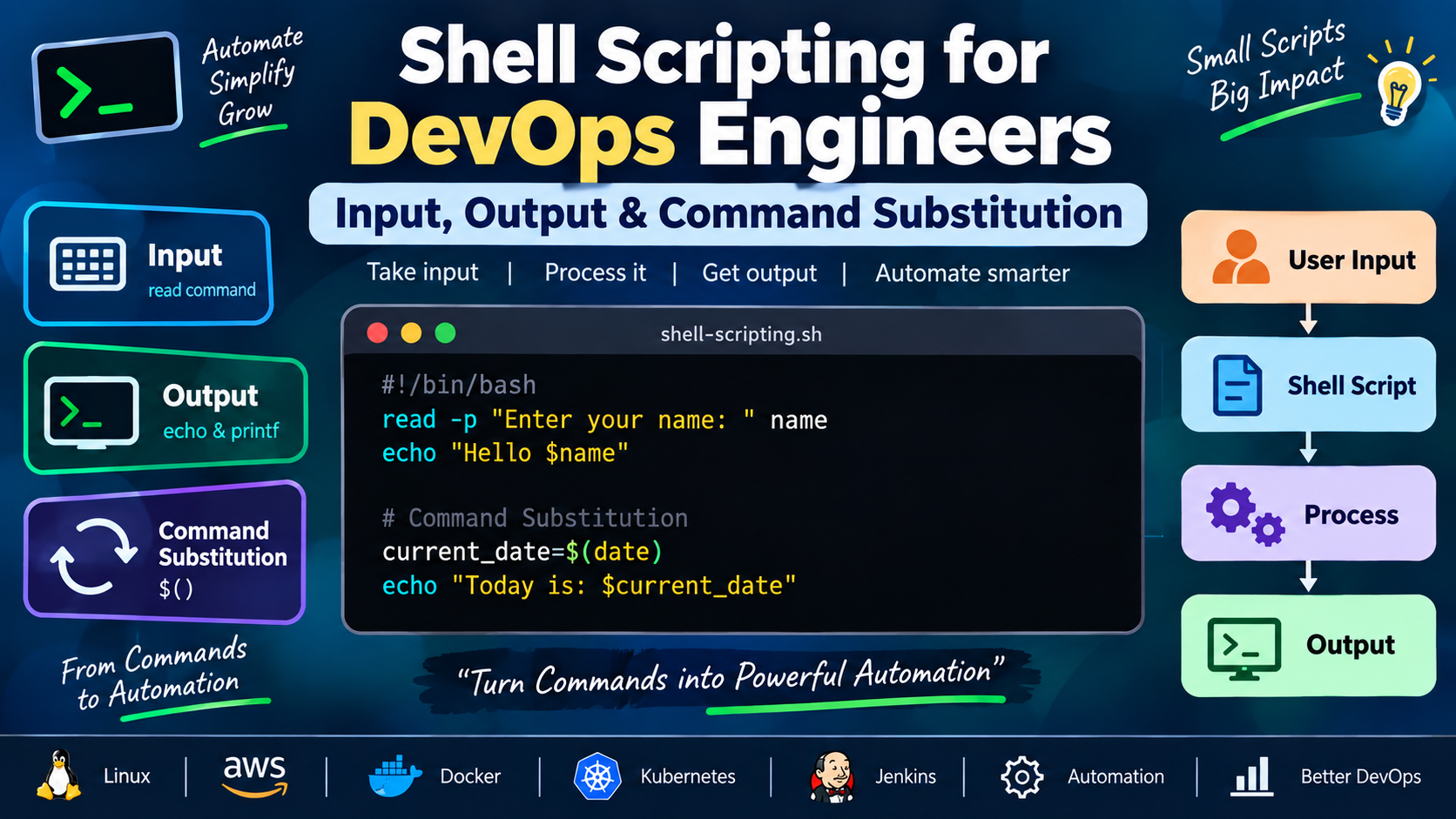
20. Loop Through User Input
We can combine read with loops.
#!/bin/bash

read -p "Enter application names: " applications

for app in $applications
do
    echo "Application: $app"
done
Example input:
payment cart shipping
Output:
Application: payment
Application: cart
Application: shipping
21. Nested Loops
A loop can exist inside another loop.
Example:
#!/bin/bash

for environment in dev qa prod
do
    for service in frontend backend
    do
        echo "$environment - $service"
    done
done
Output:
dev - frontend
dev - backend
qa - frontend
qa - backend
prod - frontend
prod - backend
Nested loops can be useful when working with multiple environments and services.
However, avoid unnecessarily complex nested loops because they can make automation harder to understand and maintain.
22. Complete DevOps Example — Log File Check
Let's combine variables, loops, conditions, and command substitution.
#!/bin/bash

LOG_DIR="/var/log"

for file in "$LOG_DIR"/*.log
do
    if [ -f "$file" ]
    then
        SIZE=$(du -h "$file" | awk '{print $1}')

        echo "Log File: $file"
        echo "Size: $SIZE"
        echo "----------------------"
    fi
done
This script:
Defines a log directory.
Finds log files.
Loops through them.
Checks whether each item is a file.
Gets its size.
Displays the result.
This demonstrates how multiple Shell concepts work together.
23. Practical Script — Server Monitoring
Here is another practical example:
#!/bin/bash

SERVERS="web01 web02 web03"

for server in $SERVERS
do
    echo "============================"
    echo "Checking: $server"

    if ping -c 1 -W 2 "$server" >/dev/null 2>&1
    then
        echo "Status: UP"
    else
        echo "Status: DOWN"
    fi
done
This is a simple foundation for building a server-monitoring script.
Common Mistakes
Mistake 1: Forgetting do and done
❌ Incorrect:
for server in web01 web02
    echo "$server"
✅ Correct:
for server in web01 web02
do
    echo "$server"
done
Mistake 2: Creating an Infinite while Loop
Be careful with:
while true
do
    echo "Running"
done
This is an intentional infinite loop, but if used accidentally, it can consume CPU or continuously execute commands.
Always make sure your loop has a valid exit condition when an infinite loop is not intended.
Mistake 3: Forgetting to Update the Counter
❌ Example:
count=1

while [ "$count" -le 5 ]
do
    echo "$count"
done
The counter never changes.
✅ Correct:
count=1

while [ "$count" -le 5 ]
do
    echo "$count"
    count=$((count + 1))
done
Practical Exercise
Create a script called:
server-check.sh
Requirements:
Create a list of three servers.
Loop through each server.
Check whether the server is reachable.
Print
UPif reachable.Print
DOWNif unreachable.Use an
if-elsecondition.Use a
forloop.
Try writing the script yourself before checking the example above.
Key Takeaways
In this article, we learned:
What loops are
forloopNumeric loops
C-style
forloopwhileloopuntilloopbreakcontinueNested loops
Looping through files
Server-health checks
Kubernetes automation
Docker automation
AWS automation
Real-time DevOps examples
Loops help DevOps engineers automate repetitive tasks and reduce manual effort.