Shell Scripting for DevOps Engineers — Process Management
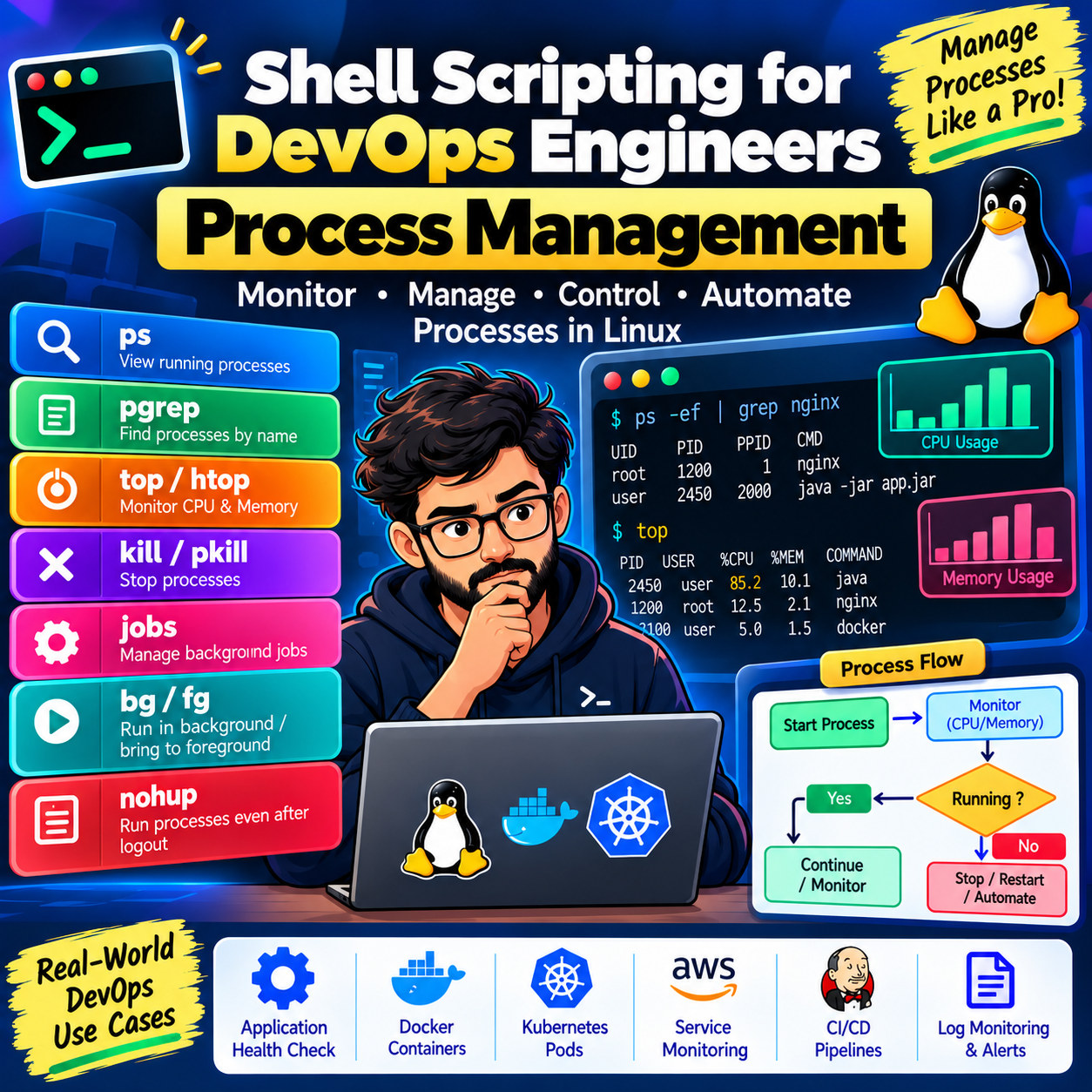
In this article, we will learn about Process Management in Linux using Shell Scripting.
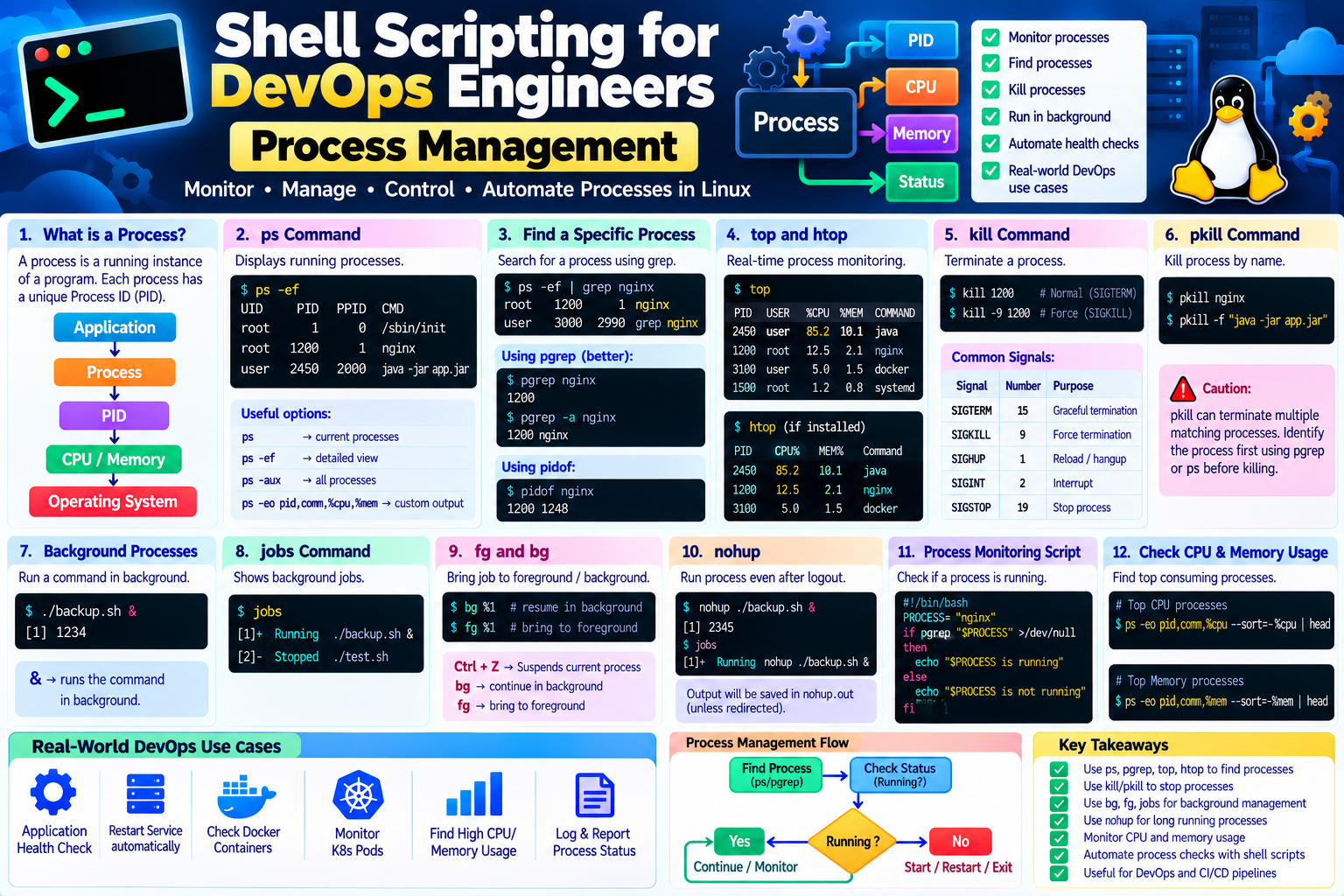
Process management is an important DevOps skill because DevOps engineers regularly need to monitor applications, identify running processes, stop unwanted processes, troubleshoot high CPU usage, and automate health checks.
1. What is a Process?
A process is a running instance of a program.
For example, when you execute:
./app.sh
Linux creates a process to execute the script.
Similarly:
Application
     ↓
Process
     ↓
PID
     ↓
CPU / Memory
     ↓
Operating System
Every running process has a unique PID (Process ID).
2. What is Process Management?
Process management means:
Viewing running processes
Finding a particular process
Monitoring CPU and memory
Starting processes
Stopping processes
Running processes in the background
Managing long-running applications
3. ps Command
The ps command displays information about running processes.
Basic command:
ps
For a detailed view:
ps -ef
Example:
UID      PID   PPID  CMD
root       1      0  /sbin/init
root    1200      1  nginx
user    2450   2000  java -jar app.jar
Important columns:
PID  → Process ID
PPID → Parent Process ID
CMD  → Command that started the process
4. Find a Specific Process
You can combine ps with grep:
ps -ef | grep nginx
Example:
ps -ef | grep java
This helps identify Java applications running on a server.
For more precise process searching, pgrep is often preferable.
5. pgrep
pgrep searches for processes by name or other attributes.
pgrep nginx
To display the PID:
pgrep nginx
To display the PID and command:
pgrep -a nginx
This is generally cleaner than:
ps -ef | grep nginx
6. pidof
pidof can also find the PID of a running program.
pidof nginx
Example output:
1250 1248
This means multiple matching processes may be running.
7. top
top provides real-time information about system processes.
top
It displays:
CPU usage
Memory usage
Process IDs
Running processes
System load
Useful when investigating high resource consumption.
8. htop
If installed, htop provides an interactive process viewer:
htop
It makes it easier to:
Search processes
Sort by CPU
Sort by memory
Kill processes
Navigate interactively
9. kill
The kill command sends a signal to a process.
Example:
kill 1250
The default signal is SIGTERM, which requests that the process terminate gracefully.
10. kill -9
You may see:
kill -9 1250
This sends SIGKILL and immediately terminates the process.
Use it carefully.
A preferred approach is usually:
kill PID
and only use kill -9 when a process does not respond appropriately to normal termination.
11. Common Signals
| Signal | Number | Purpose |
|---|---|---|
SIGTERM |
15 | Request graceful termination |
SIGKILL |
9 | Force termination |
SIGHUP |
1 | Hangup / commonly used to request reload |
SIGINT |
2 | Interrupt |
SIGSTOP |
19 | Stop process |
You can also use names:
kill -TERM 1250
instead of:
kill -15 1250
12. pkill
pkill can terminate processes based on their name.
Example:
pkill nginx
Use carefully because it can affect multiple matching processes.
A safer approach is to identify the exact process first:
pgrep -a nginx
13. Background Processes
Normally:
./backup.sh
runs in the foreground.
The terminal remains occupied until the command finishes.
To start it in the background:
./backup.sh &
The & operator runs the command asynchronously.
14. jobs
The jobs command shows jobs started by the current shell.
jobs
Example:
[1]+  Running    ./backup.sh &
[2]-  Stopped    ./test.sh
15. fg
fg brings a background or stopped job to the foreground.
fg
For a specific job:
fg %1
16. bg
bg resumes a stopped job in the background.
Example:
bg %1
17. Ctrl + Z
Pressing:
Ctrl + Z
suspends the current foreground process.
It does not terminate the process.
You can then use:
bg
to continue it in the background.
18. nohup
nohup allows a command to continue running after the terminal session is closed.
Example:
nohup ./backup.sh &
Output is commonly written to:
nohup.out
unless you redirect it elsewhere.
For production services, a service manager such as systemd is generally more appropriate than nohup.
19. Process Monitoring with Shell Script
We can write a simple script to check whether a process is running.
#!/bin/bash

PROCESS="nginx"

if pgrep "$PROCESS" >/dev/null
then
    echo "$PROCESS is running"
else
    echo "$PROCESS is not running"
fi
This is a simple process health check.
20. Check CPU Usage
You can use:
top
or:
ps -eo pid,comm,%cpu --sort=-%cpu | head
This displays processes ordered by CPU usage.
Example:
PID    COMMAND     %CPU
2450   java        85.2
3100   nginx       12.5
1200   systemd      2.1
21. Check Memory Usage
Use:
ps -eo pid,comm,%mem --sort=-%mem | head
This helps identify processes consuming large amounts of memory.
22. Find the Top CPU-Consuming Process
ps -eo pid,comm,%cpu --sort=-%cpu | head -n 6
This displays the highest CPU-consuming processes.
23. Find the Top Memory-Consuming Process
ps -eo pid,comm,%mem --sort=-%mem | head -n 6
This is useful when troubleshooting memory-related issues.
24. Real-Time DevOps Example — Application Check
Suppose we have a Java application.
#!/bin/bash

PROCESS="java"

if pgrep "$PROCESS" >/dev/null
then
    echo "Java application is running"
else
    echo "Java application is not running"
    exit 1
fi
This can be used as a simple health check.
25. Real-Time DevOps Example — Restart Application
A simple automation pattern:
#!/bin/bash

SERVICE="nginx"

if systemctl is-active --quiet "$SERVICE"
then
    echo "$SERVICE is running"
else
    echo "$SERVICE is down"
    echo "Starting $SERVICE..."
    sudo systemctl start "$SERVICE"
fi
This combines process/service checking with automation.
26. Process Management with Docker
Docker containers are also represented by processes on the host.
Check running containers:
docker ps
Find a particular container:
docker ps --filter "name=myapp"
Stop a container:
docker stop myapp
Force stop:
docker kill myapp
Use docker stop first when graceful shutdown is desired.
27. Process Management with Kubernetes
Kubernetes manages application processes through containers and Pods.
Check Pods:
kubectl get pods
Detailed information:
kubectl describe pod myapp-pod
Check container processes:
kubectl exec myapp-pod -- ps
Depending on the container image, ps may not be installed.
28. Process Monitoring Script
Here is a simple reusable script:
#!/bin/bash

PROCESS="$1"

if [ -z "$PROCESS" ]
then
    echo "Usage: $0 <process-name>"
    exit 1
fi

if pgrep "$PROCESS" >/dev/null
then
    echo "$PROCESS is running"
else
    echo "$PROCESS is not running"
    exit 1
fi
Run:
./process-check.sh nginx
Output:
nginx is running
29. Monitoring Multiple Processes
#!/bin/bash

PROCESSES=("nginx" "sshd" "cron")

for process in "${PROCESSES[@]}"
do
    if pgrep "$process" >/dev/null
    then
        echo "$process : RUNNING"
    else
        echo "$process : NOT RUNNING"
    fi
done
This is useful for basic server health checks.
30. Find a Process and Display Details
#!/bin/bash

PROCESS="nginx"

PID=$(pgrep -o "$PROCESS")

if [ -n "$PID" ]
then
    echo "Process: $PROCESS"
    echo "PID: $PID"

    ps -p "$PID" -o pid,ppid,comm,%cpu,%mem
else
    echo "$PROCESS is not running"
fi
31. Process Management in CI/CD
Shell scripts can be used in CI/CD pipelines to:
Build Application
       ↓
Start Application
       ↓
Check Process
       ↓
Run Health Check
       ↓
Test
       ↓
Deploy
If the application process is not running:
Process Check
      ↓
Failure
      ↓
Exit 1
      ↓
CI/CD Pipeline Step Fails
This helps prevent later deployment stages from running after a failed prerequisite.
32. Real-Time DevOps Scenario
Problem
Your application server shows high CPU usage.
Troubleshooting approach
First:
top
Identify the process consuming CPU.
Then:
ps -fp <PID>
Check process details.
You can also run:
ps -p <PID> -o pid,ppid,comm,%cpu,%mem
If the process is not responding, investigate the application logs and service configuration before deciding whether to terminate or restart it.
33. Best Practices
✅ Identify the correct PID before terminating a process.
✅ Prefer graceful termination before force killing.
✅ Use pgrep for process-name checks.
✅ Monitor CPU and memory usage.
✅ Keep process-monitoring scripts simple and readable.
✅ Log important failures.
✅ Use systemd for managing production Linux services where appropriate.
✅ Use Docker/Kubernetes commands for containerized workloads rather than manipulating container processes directly.
🎯 Key Takeaways
Process Management
        ↓
      ps
        ↓
     pgrep
        ↓
      top
        ↓
     kill
        ↓
     jobs
        ↓
      bg / fg
        ↓
     nohup
        ↓
Process Monitoring
        ↓
DevOps Automation
You should now understand:
✅ Processes ✅ PID / PPID ✅ ps ✅ pgrep ✅ pidof ✅ top ✅ htop ✅ kill ✅ Signals ✅ pkill ✅ Background processes ✅ jobs ✅ bg / fg ✅ nohup ✅ Docker process management ✅ Kubernetes process checks ✅ Process monitoring scripts
Process management is an essential Linux skill for DevOps engineers because it helps us monitor applications, troubleshoot resource issues, and automate server health checks.