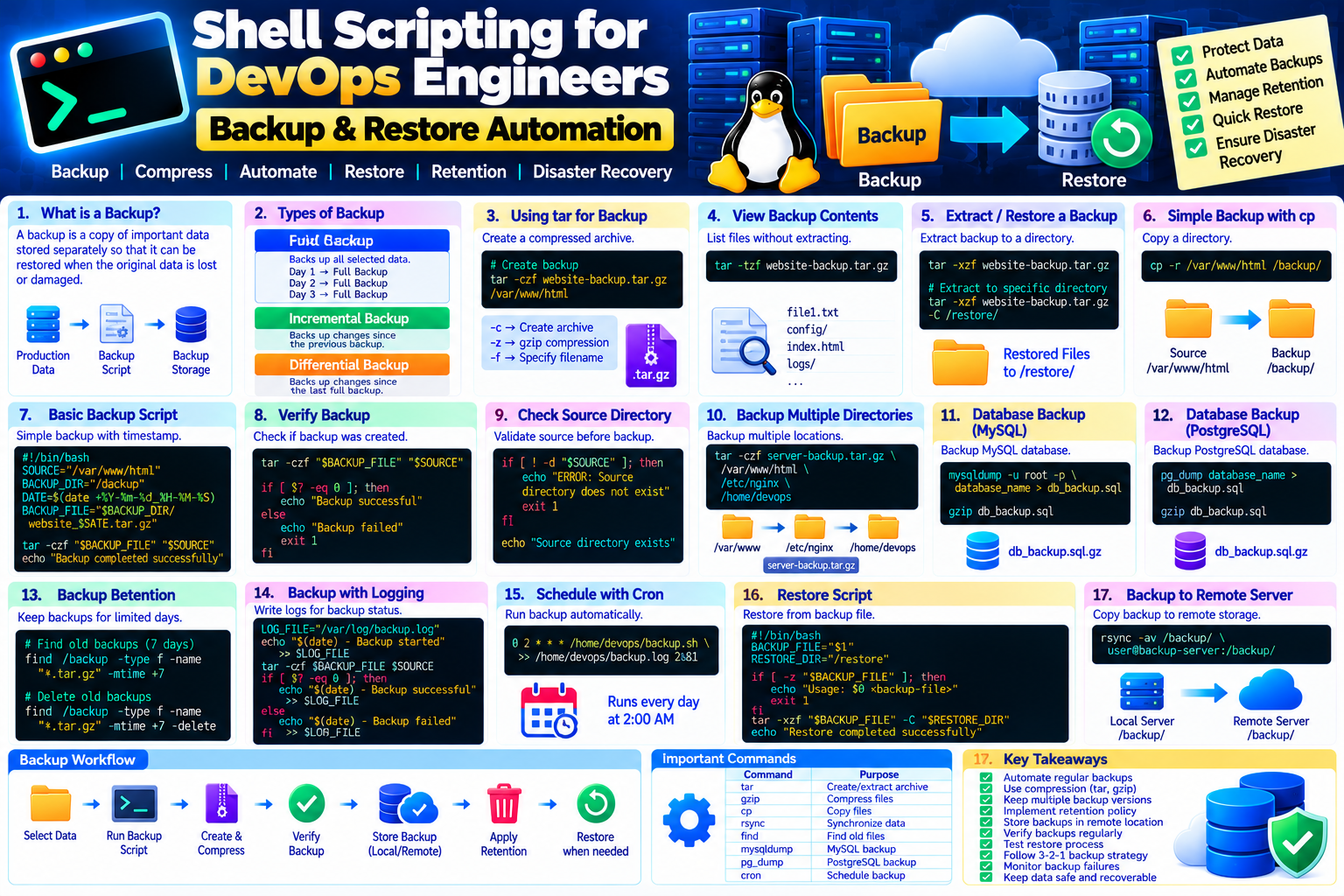
Shell Scripting — Backup & Restore Automation
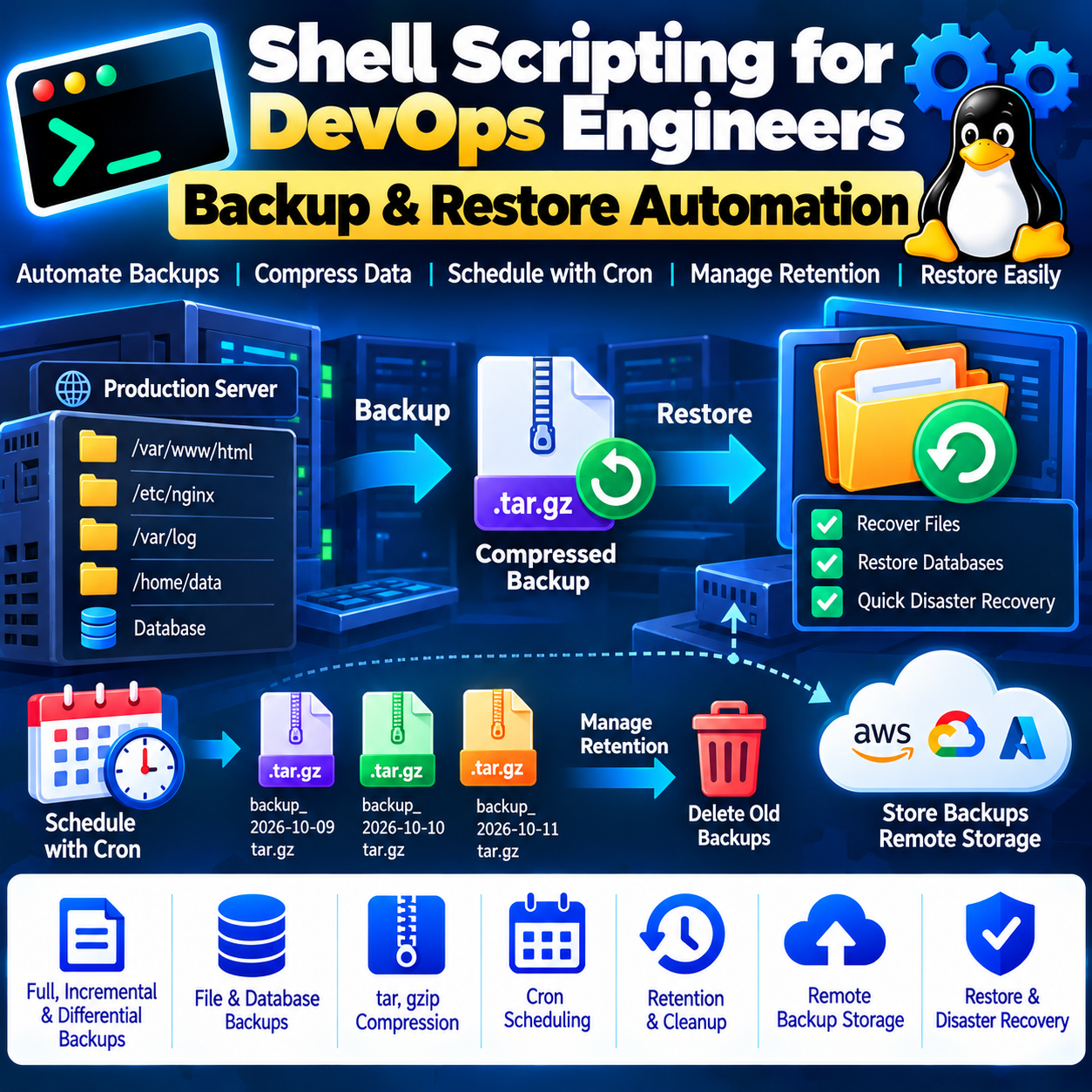
In the previous article, we learned about User & File Management.
In this article, we will learn how to use Shell Scripting to automate backups and restore operations.
Backup automation is an important DevOps skill because it helps protect application files, configuration files, logs, and other important data from accidental deletion, corruption, or system failures.
1. What is a Backup?
A backup is a copy of important data stored separately so that it can be restored when the original data is lost or damaged.
Production Data
      ↓
   Backup Script
      ↓
 Backup File
      ↓
Backup Storage
Examples of data that may need backups:
Application files
Configuration files
Databases
Logs
Certificates
Infrastructure configuration
Important server data
2. Why is Backup Important in DevOps?
Backup automation helps us:
✅ Protect important data
✅ Recover from accidental deletion
✅ Recover from server failures
✅ Reduce manual work
✅ Maintain regular backups
✅ Support disaster recovery
✅ Improve operational reliability
3. Types of Backup
Full Backup
Backs up all selected data.
Day 1 → Full Backup
Day 2 → Full Backup
Day 3 → Full Backup
Incremental Backup
Backs up data changed since the previous backup.
Full Backup
    ↓
Changes
    ↓
Incremental Backup
Differential Backup
Backs up data changed since the last full backup.
Full Backup
    ↓
All changes since Full Backup
    ↓
Differential Backup
4. Create a Simple Backup Using cp
For a simple directory:
cp -r /var/www/html /backup/
However, for larger backups and preserving file metadata, tar is generally more useful.
5. Using tar for Backups
Create a compressed archive:
tar -czf website-backup.tar.gz /var/www/html
Options:
-c → Create archive
-z → gzip compression
-f → Specify filename
Example:
website-backup.tar.gz
6. View the Backup Contents
Use:
tar -tzf website-backup.tar.gz
This lists the files without extracting them.
7. Extract a Backup
To restore the archive:
tar -xzf website-backup.tar.gz
Options:
-x → Extract
-z → gzip
-f → File
You can extract to a specific directory:
tar -xzf website-backup.tar.gz -C /restore/
8. Create a Backup Directory
Let's create a dedicated backup directory:
sudo mkdir -p /backup
Check:
ls -ld /backup
9. Basic Backup Script
Create:
vim backup.sh
Add:
#!/bin/bash

SOURCE="/var/www/html"
BACKUP_DIR="/backup"

DATE=$(date +%Y-%m-%d_%H-%M-%S)

BACKUP_FILE="$BACKUP_DIR/website_$DATE.tar.gz"

tar -czf "$BACKUP_FILE" "$SOURCE"

echo "Backup completed successfully"
echo "Backup file: $BACKUP_FILE"
Give execute permission:
chmod +x backup.sh
Run:
./backup.sh
Example:
Backup completed successfully
Backup file: /backup/website_2026-10-09_16-30-00.tar.gz
10. Why Use a Timestamp?
Instead of overwriting the same backup file every time:
backup.tar.gz
we create unique files:
website_2026-10-09_16-00-00.tar.gz
website_2026-10-09_17-00-00.tar.gz
website_2026-10-09_18-00-00.tar.gz
This allows us to keep multiple backup versions.
11. Add Backup Verification
A good backup script should check whether the backup was created successfully.
#!/bin/bash

SOURCE="/var/www/html"
BACKUP_DIR="/backup"

DATE=$(date +%Y-%m-%d_%H-%M-%S)
BACKUP_FILE="$BACKUP_DIR/website_$DATE.tar.gz"

tar -czf "$BACKUP_FILE" "$SOURCE"

if [ $? -eq 0 ]
then
    echo "Backup successful: $BACKUP_FILE"
else
    echo "Backup failed"
    exit 1
fi
Here:
$?
contains the exit status of the previous command.
Generally:
0     → Success
Non-0 → Failure
12. Check Whether the Source Exists
Before creating a backup, validate the source directory.
#!/bin/bash

SOURCE="/var/www/html"

if [ ! -d "$SOURCE" ]
then
    echo "ERROR: Source directory does not exist"
    exit 1
fi

echo "Source directory exists"
This prevents the script from blindly running against an invalid path.
13. Complete Backup Script
Here is a more practical version:
#!/bin/bash

SOURCE="/var/www/html"
BACKUP_DIR="/backup"

DATE=$(date +%Y-%m-%d_%H-%M-%S)
BACKUP_FILE="$BACKUP_DIR/website_$DATE.tar.gz"

echo "===== Backup Started ====="

if [ ! -d "$SOURCE" ]
then
    echo "ERROR: Source directory does not exist"
    exit 1
fi

mkdir -p "$BACKUP_DIR"

tar -czf "$BACKUP_FILE" "$SOURCE"

if [ $? -eq 0 ]
then
    echo "Backup successful"
    echo "Backup file: $BACKUP_FILE"
else
    echo "Backup failed"
    exit 1
fi

echo "===== Backup Completed ====="
14. Backup Database
Shell scripts can also automate database backups.
For MySQL/MariaDB, a common approach is:
mysqldump -u root -p database_name > database_backup.sql
Then compress it:
gzip database_backup.sql
Result:
database_backup.sql.gz
Important: Avoid putting database passwords directly inside scripts. Use an appropriate secret-management mechanism or secure database authentication configuration.
15. PostgreSQL Backup
For PostgreSQL:
pg_dump database_name > database_backup.sql
Compress:
gzip database_backup.sql
For production systems, database backup strategy should also consider consistency, retention, encryption, and restore testing.
16. Backup Multiple Directories
Suppose we need to back up:
/var/www/html
/etc/nginx
/home/devops
We can use:
tar -czf server-backup.tar.gz \
    /var/www/html \
    /etc/nginx \
    /home/devops
This creates one compressed archive containing all three locations.
17. Backup Retention
Keeping unlimited backups can eventually consume all available disk space.
For example:
Backup 1
Backup 2
Backup 3
...
Backup 100
Instead, define a retention policy.
Example:
Keep backups for 7 days.
Find backups older than 7 days:
find /backup -type f -name "*.tar.gz" -mtime +7
After verifying the list, you can delete them:
find /backup -type f -name "*.tar.gz" -mtime +7 -delete
⚠️ Always test the find command without -delete first.
18. Backup Rotation Script
#!/bin/bash

BACKUP_DIR="/backup"

find "$BACKUP_DIR" \
    -type f \
    -name "*.tar.gz" \
    -mtime +7 \
    -delete

echo "Old backups cleaned successfully"
This is called backup rotation/retention.
19. Automate Backups with Cron
We can schedule the backup script using Cron.
Edit Cron:
crontab -e
Run every day at 2 AM:
0 2 * * * /home/devops/backup.sh >> /home/devops/backup.log 2>&1
Now:
Cron
  ↓
Backup Script
  ↓
Create Archive
  ↓
Store Backup
  ↓
Write Logs
20. Backup Logs
Logging is important for troubleshooting.
Example:
#!/bin/bash

LOG_FILE="/var/log/backup.log"

echo "$(date) - Backup started" >> "$LOG_FILE"

tar -czf /backup/website.tar.gz /var/www/html

if [ $? -eq 0 ]
then
    echo "$(date) - Backup successful" >> "$LOG_FILE"
else
    echo "$(date) - Backup failed" >> "$LOG_FILE"
fi
21. Restore Process
A backup is useful only if we can successfully restore it.
Suppose we have:
website_2026-10-09_02-00-00.tar.gz
Create the restore directory:
mkdir -p /restore
Extract:
tar -xzf website_2026-10-09_02-00-00.tar.gz -C /restore
Verify:
ls -la /restore
22. Restore Script
Create:
vim restore.sh
Example:
#!/bin/bash

BACKUP_FILE="$1"
RESTORE_DIR="/restore"

if [ -z "$BACKUP_FILE" ]
then
    echo "Usage: $0 <backup-file>"
    exit 1
fi

if [ ! -f "$BACKUP_FILE" ]
then
    echo "Backup file does not exist"
    exit 1
fi

mkdir -p "$RESTORE_DIR"

tar -xzf "$BACKUP_FILE" -C "$RESTORE_DIR"

if [ $? -eq 0 ]
then
    echo "Restore completed successfully"
else
    echo "Restore failed"
    exit 1
fi
Run:
./restore.sh /backup/website_2026-10-09_02-00-00.tar.gz
23. Verify a Backup
Before relying on a backup, verify that the archive is valid.
For a gzip-compressed tar archive:
tar -tzf backup.tar.gz > /dev/null
Check the exit status:
echo $?
If it returns:
0
the archive could be read successfully.
24. Backup to a Remote Server
For remote backup storage, tools such as rsync or scp can be used.
Example:
rsync -av /backup/ user@backup-server:/backup/
This copies backup data to another server.
A remote copy is safer than keeping the only backup on the same server.
25. Backup Workflow
A practical workflow:
             Production Server
                    ↓
              Backup Script
                    ↓
             Create Archive
                    ↓
              Compress Data
                    ↓
             Verify Backup
                    ↓
          ┌─────────┴─────────┐
          ↓                   ↓
     Local Backup       Remote Backup
          ↓                   ↓
       Retention           Storage
          ↓                   ↓
        Cleanup         Disaster Recovery
26. Real-Time DevOps Example
Imagine a production web server:
/var/www/html
/etc/nginx
We need daily backups.
Our automation can:
2:00 AM
   ↓
Cron starts script
   ↓
Check source directories
   ↓
Create timestamped archive
   ↓
Verify archive
   ↓
Copy to backup storage
   ↓
Delete backups older than 7 days
   ↓
Write result to log
This eliminates the need for a DevOps engineer to manually perform the same task every day.
27. Backup Best Practices
1. Follow the 3-2-1 Backup Principle
A common backup strategy is:
3 copies of data
2 different storage types
1 copy stored off-site
2. Encrypt sensitive backups
Backups may contain confidential information.
3. Use retention policies
Don't keep unlimited backups.
4. Monitor backup failures
A failed backup should generate an alert.
5. Test restores
A backup that has never been restored/tested should not be assumed to be reliable.
6. Keep backups separate from production
If the production server fails completely, the backup should still be available.
28. Complete Backup Automation Example
#!/bin/bash

SOURCE="/var/www/html"
BACKUP_DIR="/backup"
RETENTION_DAYS=7

DATE=$(date +%Y-%m-%d_%H-%M-%S)
BACKUP_FILE="$BACKUP_DIR/website_$DATE.tar.gz"
LOG_FILE="$BACKUP_DIR/backup.log"

echo "[$(date)] Backup started" >> "$LOG_FILE"

if [ ! -d "$SOURCE" ]
then
    echo "[$(date)] ERROR: Source directory missing" >> "$LOG_FILE"
    exit 1
fi

mkdir -p "$BACKUP_DIR"

tar -czf "$BACKUP_FILE" "$SOURCE"

if [ $? -ne 0 ]
then
    echo "[$(date)] ERROR: Backup failed" >> "$LOG_FILE"
    exit 1
fi

if tar -tzf "$BACKUP_FILE" > /dev/null
then
    echo "[$(date)] Backup verified: $BACKUP_FILE" >> "$LOG_FILE"
else
    echo "[$(date)] ERROR: Backup verification failed" >> "$LOG_FILE"
    exit 1
fi

find "$BACKUP_DIR" \
    -type f \
    -name "website_*.tar.gz" \
    -mtime +"$RETENTION_DAYS" \
    -delete

echo "[$(date)] Backup completed successfully" >> "$LOG_FILE"
This script demonstrates:
Validation
   ↓
Backup
   ↓
Verification
   ↓
Logging
   ↓
Retention
   ↓
Cleanup
29. Important Commands
| Command | Purpose |
|---|---|
tar |
Create/extract archives |
gzip |
Compress files |
cp |
Copy files |
rsync |
Synchronize/copy data |
scp |
Securely copy files |
find |
Find old backup files |
date |
Generate timestamps |
cron |
Schedule backups |
mysqldump |
MySQL/MariaDB logical backup |
pg_dump |
PostgreSQL logical backup |
🎯 Key Takeaways
Backup
  ↓
Compression
  ↓
Verification
  ↓
Remote Storage
  ↓
Retention
  ↓
Restore Testing
  ↓
Disaster Recovery
You should now understand:
✅ Backup concepts
✅ Full, incremental and differential backups
✅ tar and gzip
✅ Backup scripts
✅ Timestamped backups
✅ Backup verification
✅ Database backups
✅ Backup retention
✅ Backup rotation
✅ Restore scripts
✅ Cron-based backups
✅ Remote backup storage
✅ 3-2-1 backup strategy
✅ Disaster recovery basics
Backup automation is an important DevOps practice because it reduces manual work, protects critical data, and helps organizations recover quickly from failures.